

Your WordPress site is hacked. You're seeing spam redirects, Google warnings, or unknown admin accounts. Every hour the infection stays live, it damages your SEO rankings, exposes your visitors to malware, and erodes the trust you've built. Here are the exact steps to take right now, in order, to contain the damage, clean the infection, and prevent it from happening again.
Step 1: Don't Panic — and Don't Delete Anything Yet
Your first instinct might be to delete suspicious files or restore from a backup immediately. Resist that urge. You need to preserve evidence of the infection for forensics — understanding how the attacker got in is the only way to prevent reinfection.
Take a full backup of the infected site right now. Label it clearly as "infected — [date]" so you never accidentally restore it. This gives you a forensic copy to analyze later and a safety net if the cleanup goes wrong.
Step 2: Change Every Password Immediately
From a clean device (not one that's been accessing the compromised site), change:
- WordPress admin passwords for every user account
- Hosting/cPanel password
- SFTP/SSH credentials
- Database password (update wp-config.php to match)
- Any third-party service API keys stored in the site
Use long, unique passwords generated by a password manager. If you've been reusing the compromised password anywhere else, change those too.
Step 3: Put the Site in Maintenance Mode
If possible, take the site offline or put it behind a maintenance page. This stops the infection from spreading to visitors, prevents Google from crawling more compromised pages, and gives you a clean environment to work in without the attacker's code running actively.
Step 4: Identify the Infection
Before cleaning, you need to know what you're dealing with:
Check your admin users. Go to the database (via phpMyAdmin or WP-CLI) and look at the wp_users table. Any administrator account you don't recognize — especially with random usernames or free email addresses — was created by the attacker. Document them but don't delete yet.
Scan the file system. Look for PHP files in your /uploads/ directory (there should be none), files with recent modification dates that you didn't change, and files with obfuscated code (base64_decode, eval, str_rot13). A security plugin or the Sucuri SiteCheck scanner can help identify known malware signatures.
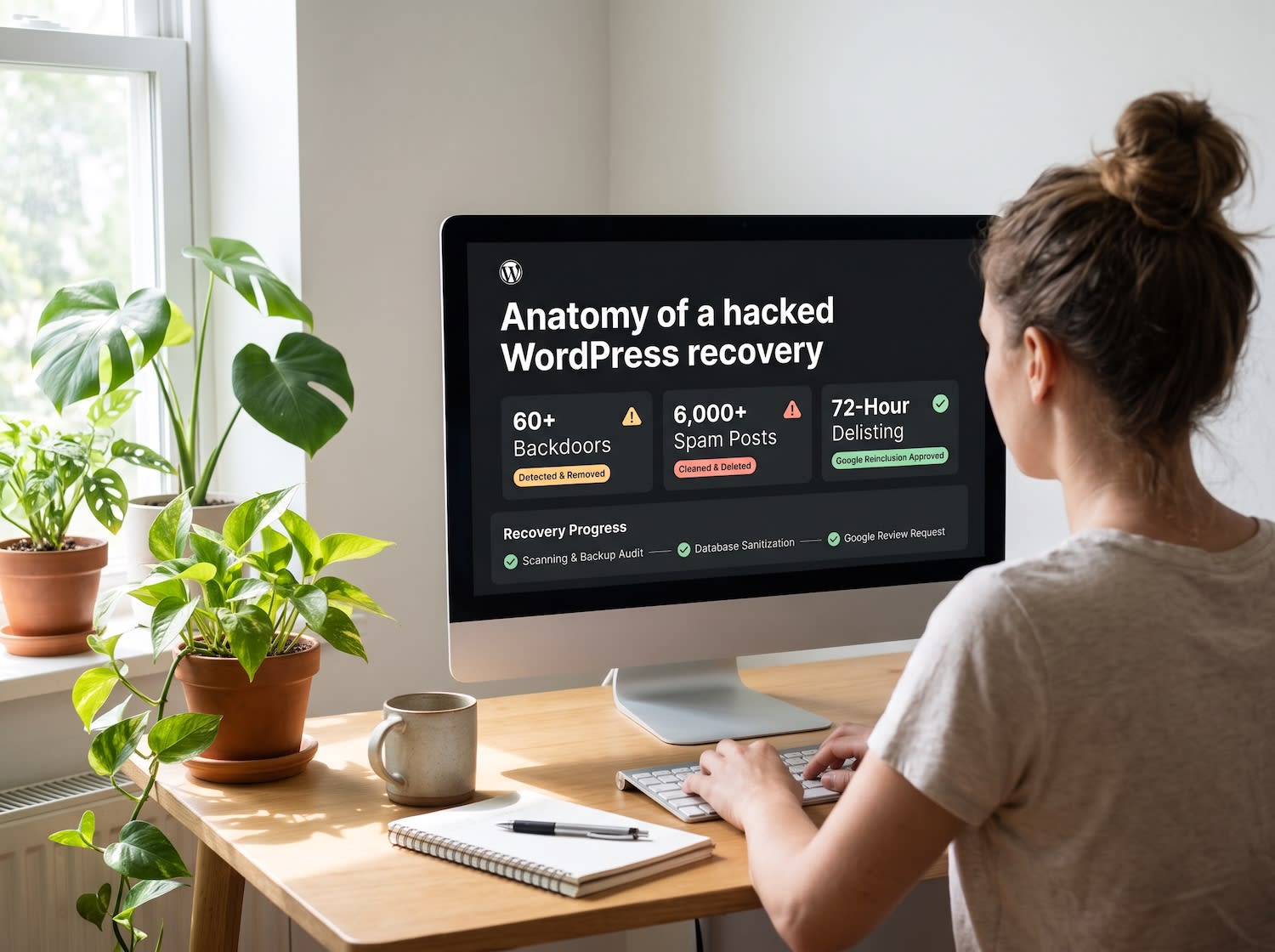
Check the database. Search for injected spam content — posts you didn't create, especially in other languages or containing pharma/casino keywords. In one recovery we handled, we found over 6,000 injected spam posts the site owner had no idea existed.
Review server logs. Your hosting access logs can reveal the entry point — which file was first accessed, from which IP, and when the attack began.
Step 5: Clean the Infection
Replace WordPress core files. Download a fresh copy of your WordPress version from wordpress.org and replace all core files. Don't touch wp-content or wp-config.php yet — just the core.
Remove malicious files. Delete every file identified in Step 4: rogue PHP files in /uploads/, backdoor scripts, injected code in theme and plugin files. If a plugin file has been modified, replace the entire plugin with a fresh copy from the official repository.
Clean the database. Delete injected spam posts, rogue user accounts, and any unfamiliar options in the wp_options table (attackers often store callback URLs here). Optimize the database after cleanup.
Regenerate security keys. Replace the authentication keys and salts in wp-config.php with fresh ones from the WordPress secret key generator. This invalidates all existing login sessions, including any the attacker might still hold.
حوّل هذه الأفكار إلى نتائج.
من تحسين محدد إلى موقع كامل، نساعدك على تحديد نطاق العمل وتنفيذه.
ناقش موقعيتصميم المواقعشاركونا أهدافكم. عادةً ما نرد خلال 4 ساعات مع طرح الأسئلة والخطوات العملية التالية.
Step 6: Close the Entry Point
This is the step most DIY cleanups skip — and why sites get reinfected within days. Removing malware without closing the vulnerability that let it in is like mopping the floor while the tap is still running.
- Update everything. Core, themes, and plugins to their latest versions. If a plugin hasn't been updated in over a year, replace it with an actively maintained alternative.
- Remove unused plugins and themes. Deactivated plugins still contain exploitable code. Delete anything you're not actively using.
- Harden the login. Mask the default login URL, enable two-factor authentication, and implement login attempt limiting.
- Add security headers. Content-Security-Policy, X-Frame-Options, X-Content-Type-Options, and Strict-Transport-Security.
- Set correct file permissions. Directories: 755. Files: 644. wp-config.php: 440. Never 777.
For the complete hardening playbook, read our guide on WordPress security flaws and how to protect your site.
Step 7: Request a Google Review
If Google has flagged your site with a "This site may be hacked" warning or a red interstitial page:
- Verify your site in Google Search Console if you haven't already
- Go to Security & Manual Actions → Security Issues
- Review the flagged issues to confirm they've been resolved
- Click "Request a Review"
- Describe what you found and what you fixed
Google typically processes review requests within 72 hours. If your site has been delisted from search results, the review will also trigger re-indexing of clean pages.
Check your status on other blocklists too — McAfee SiteAdvisor, Norton Safe Web, and other antivirus providers may have independently flagged your domain.
Step 8: Set Up Monitoring So It Doesn't Happen Again
A cleaned site without monitoring is a site waiting to be compromised again.
- Real-time malware scanning to catch new infections immediately
- File integrity monitoring to alert you when core files change unexpectedly
- Uptime monitoring to notify you if the site goes down
- Automated daily off-site backups so you always have a clean restore point
When to Call in Professionals
If your site handles customer data (e-commerce, membership, or health information), if the infection has been active for more than a few days, if you've cleaned it but it keeps getting reinfected, or if you're locked out of your own admin — these are situations where a professional recovery pays for itself.
Our WordPress security services cover the entire process: malware removal, entry-point identification, hardening, blacklist removal, and ongoing monitoring. For active emergencies, our hacked site recovery service handles cleanups with a fixed quote and typical 24–48 hour turnaround.
Contact us for a free security assessment — we typically respond within hours.
Frequently Asked Questions
Will I lose my content or SEO rankings from a hack?
Not if you act quickly. A proper cleanup preserves all legitimate content, media, and settings. The longer the infection stays live, the more damage Google's warnings do to your rankings — which is why speed matters. Most sites recover their rankings within 2–4 weeks after cleanup and review.
My site was cleaned but got hacked again. Why?
Because the cleanup removed the symptoms but not the cause. A leftover backdoor or the original vulnerability remained open. Reinfection within days is the signature of an incomplete cleanup. Professional recovery always includes identifying and closing the entry point.
How much does professional WordPress hack recovery cost?
We offer fixed-price recovery — quoted before any work begins, based on the scope of the infection. No hourly surprises. Contact us with your site URL for a free preliminary assessment and exact quote.
Should I just rebuild my site from scratch?
Almost never. A full rebuild loses your content, URLs, and ranking history. A structured cleanup or a restore from a clean pre-infection backup preserves everything. Reserve rebuilding for cases where no clean backup exists and the infection touches every file.