
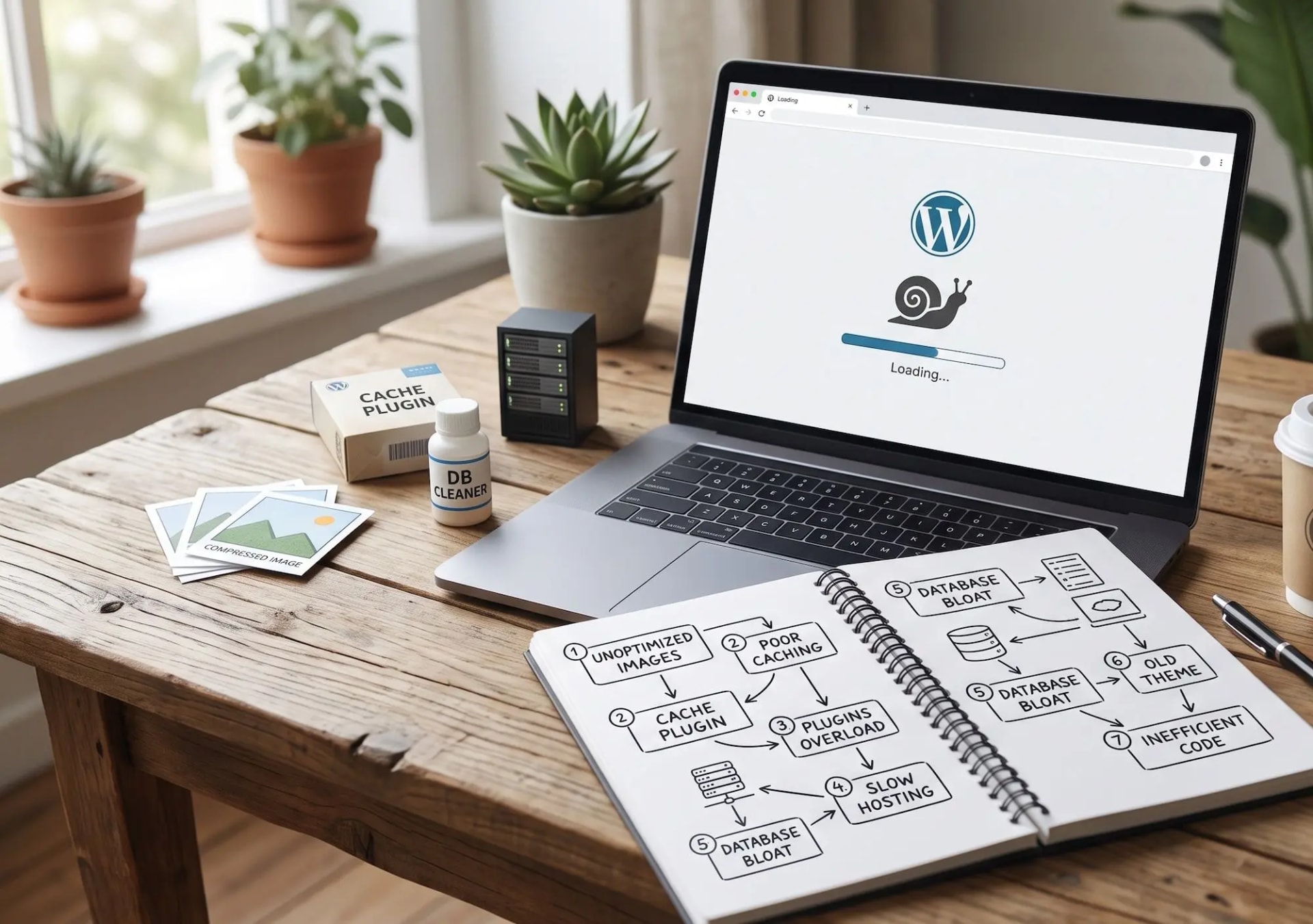
Your WordPress site is slow, and you're losing visitors because of it. A one-second delay in load time costs roughly 7% of conversions, and over half of mobile visitors abandon a site that takes more than three seconds to load. The good news: WordPress slowness almost always traces back to one of seven causes, and each one is fixable. Here's how to diagnose which is affecting your site and exactly what to do about it.
First: Measure Before You Fix
Before changing anything, get a baseline. Run your site through Google PageSpeed Insights and note three numbers: your Largest Contentful Paint (LCP), Interaction to Next Paint (INP), and Cumulative Layout Shift (CLS). These are Google's Core Web Vitals, and they're confirmed ranking factors.
Also check your Time to First Byte (TTFB) in the browser's Network tab. If TTFB is over 600ms, your problem is server-side. If TTFB is fast but the page still takes seconds to render, your problem is front-end.
This one measurement splits your diagnosis in half.
Cause 1: Unoptimized Images
Symptoms: Slow LCP, large total page size (over 2MB), images loading progressively as you scroll.
Images are the single largest contributor to page weight on most WordPress sites. A photographer uploads a 4MB JPEG straight from their camera. A designer exports PNGs at 3x resolution. The site loads them at full size and scales them down in the browser — meaning the visitor downloads 4MB to see a 400px thumbnail.
The fix: Convert images to WebP format (typically 25–35% smaller than JPEG at equivalent quality). Implement responsive images with srcset so mobile visitors download appropriately sized versions. Enable lazy loading so below-the-fold images only load when the visitor scrolls to them. Compress everything before upload.
Cause 2: Render-Blocking JavaScript and CSS
Symptoms: Slow LCP, blank white screen for the first second or two, PageSpeed flags "Eliminate render-blocking resources."
When a browser encounters a JavaScript or CSS file in your page head, it stops rendering and waits for that file to download and execute. If you have 12 render-blocking scripts, the visitor stares at a blank page while all 12 load sequentially.
The fix: Defer non-critical JavaScript with the `defer` attribute so it loads after the page renders. Use `async` for independent scripts like analytics. Inline critical CSS (the styles needed for above-the-fold content) directly in the head, and load the rest asynchronously. Remove scripts you're not actually using.
Cause 3: Too Many Plugins (or the Wrong Ones)
Symptoms: Slow everywhere — admin dashboard included. High server CPU usage. Multiple database queries per page load.
Plugin count itself isn't the problem — plugin quality is. A single poorly coded plugin that loads its CSS and JavaScript on every page (even pages where it isn't used) can add more weight than ten well-built ones.
The fix: Audit your plugin list. Deactivate each one temporarily and measure the performance impact. Delete anything you're not actively using — deactivated plugins still exist in your codebase and pose a security risk. Replace bloated plugins with lighter alternatives, or with custom code where the functionality is simple enough. Use a plugin like Asset CleanUp to disable specific plugin assets on pages that don't need them.
Cause 4: No Caching
Symptoms: Consistently slow TTFB. Every page load hits the database. Performance degrades under traffic.
Without caching, WordPress rebuilds every page from scratch on every single request — running PHP, querying the database multiple times, and assembling the HTML. For a page that hasn't changed in weeks, this is wasted work repeated thousands of times.
The fix: Implement multi-tier caching. Page caching stores the complete rendered HTML so repeat requests skip PHP entirely. Object caching (Redis or Memcached) stores database query results. Browser caching tells visitors' browsers to store static assets locally so return visits load instantly. Most quality hosts offer server-level caching that outperforms plugin-based solutions.
Pon estas ideas en práctica.
Desde una mejora puntual hasta una web completa, te ayudamos a definir el alcance y llevarlo a cabo.
Hablemos de mi webDiseño webCuéntanos tus objetivos. Solemos responder en menos de 4 horas con preguntas y próximos pasos prácticos.
Cause 5: Slow or Overloaded Hosting
Symptoms: High TTFB (over 800ms) even with caching enabled. Slowness during traffic spikes. Host emails about resource limits.
Cheap shared hosting puts hundreds of sites on one server. When a neighbor site gets a traffic spike or runs a resource-heavy process, your site slows down — through no fault of your own. Some budget hosts also throttle PHP workers, meaning concurrent visitors queue up.
The fix: Upgrade to quality managed WordPress hosting, a VPS, or a cloud provider. Look for hosts with server-level caching, PHP 8.2+, HTTP/3 support, and transparent resource limits. Add a CDN (Cloudflare, BunnyCDN) to serve static assets from edge locations near your visitors. This is often the single highest-impact change for sites on budget hosting.
Cause 6: Bloated Database
Symptoms: Slow admin dashboard, slow search, slow archive pages. Database size disproportionate to your content volume.
WordPress databases accumulate cruft over time: post revisions (every draft save creates one), spam comments, expired transients, orphaned metadata from deleted plugins, and in compromised sites, injected spam content. We've cleaned databases containing over 6,000 injected spam posts the owner had no idea existed.
The fix: Limit post revisions (set `WP_POST_REVISIONS` to 3–5 in wp-config.php). Delete spam and trashed comments. Clear expired transients. Remove orphaned metadata from uninstalled plugins. Optimize database tables. Run this cleanup quarterly, or automate it as part of a maintenance plan.
Cause 7: Third-Party Scripts
Symptoms: Good server performance but slow perceived load. PageSpeed flags "Reduce the impact of third-party code."
Every chat widget, analytics tag, Facebook pixel, heatmap tool, and embedded video adds external requests your site doesn't control. A single chat widget can add 500KB and multiple blocking requests. If the third-party server is slow, your site is slow.
The fix: Audit every third-party script. Remove anything that isn't actively delivering value. Load remaining scripts asynchronously. Use a tag manager to control loading order and conditions. Self-host fonts instead of loading from Google Fonts. Lazy-load embedded videos with a preview thumbnail that only loads the player on click.
Your Diagnostic Flowchart
- Is TTFB over 600ms? → Server-side problem. Check hosting quality and caching (Causes 4 and 5).
- Is total page size over 2MB? → Asset problem. Check images and third-party scripts (Causes 1 and 7).
- Is the admin dashboard also slow? → Plugin or database problem (Causes 3 and 6).
- Does PageSpeed flag render-blocking resources? → Front-end code problem (Cause 2).
- Is performance fine alone but bad under traffic? → Hosting resource limits (Cause 5).
When to Bring in Specialists
DIY optimization can typically take a site from 30 to 60 on PageSpeed. Getting from 60 to 90+ requires code-level work: critical CSS generation, JavaScript execution optimization, database query analysis, and server configuration.
We took one client's site from a sub-20 desktop score to green Core Web Vitals by working through every layer systematically. Our WordPress speed optimization services include a full diagnostic audit, code-level fixes, and before/after benchmarks.
Get a free speed audit — we'll show you exactly what's slowing your site down.
FAQs
How fast should a WordPress site load?
Aim for under 2.5 seconds LCP on mobile (Google's "good" threshold), under 200ms INP, and under 0.1 CLS. Total page size should stay under 1.5MB where possible. Most WordPress sites can reach 90+ PageSpeed scores with proper optimization.
Will a caching plugin fix my slow site?
Caching helps significantly with TTFB and repeat visits, but it doesn't fix oversized images, render-blocking scripts, or bloated databases. Caching is one layer of a complete optimization strategy, not a standalone solution.
Does site speed really affect SEO?
Yes. Google confirmed Core Web Vitals as ranking signals. Beyond direct ranking impact, faster sites have lower bounce rates and higher engagement, which are themselves positive signals.
Should I switch hosts to fix speed problems?
If your TTFB is consistently over 800ms with caching enabled, yes — hosting is likely your bottleneck. But diagnose first: switching hosts won't fix a 5MB homepage or twelve render-blocking scripts.