
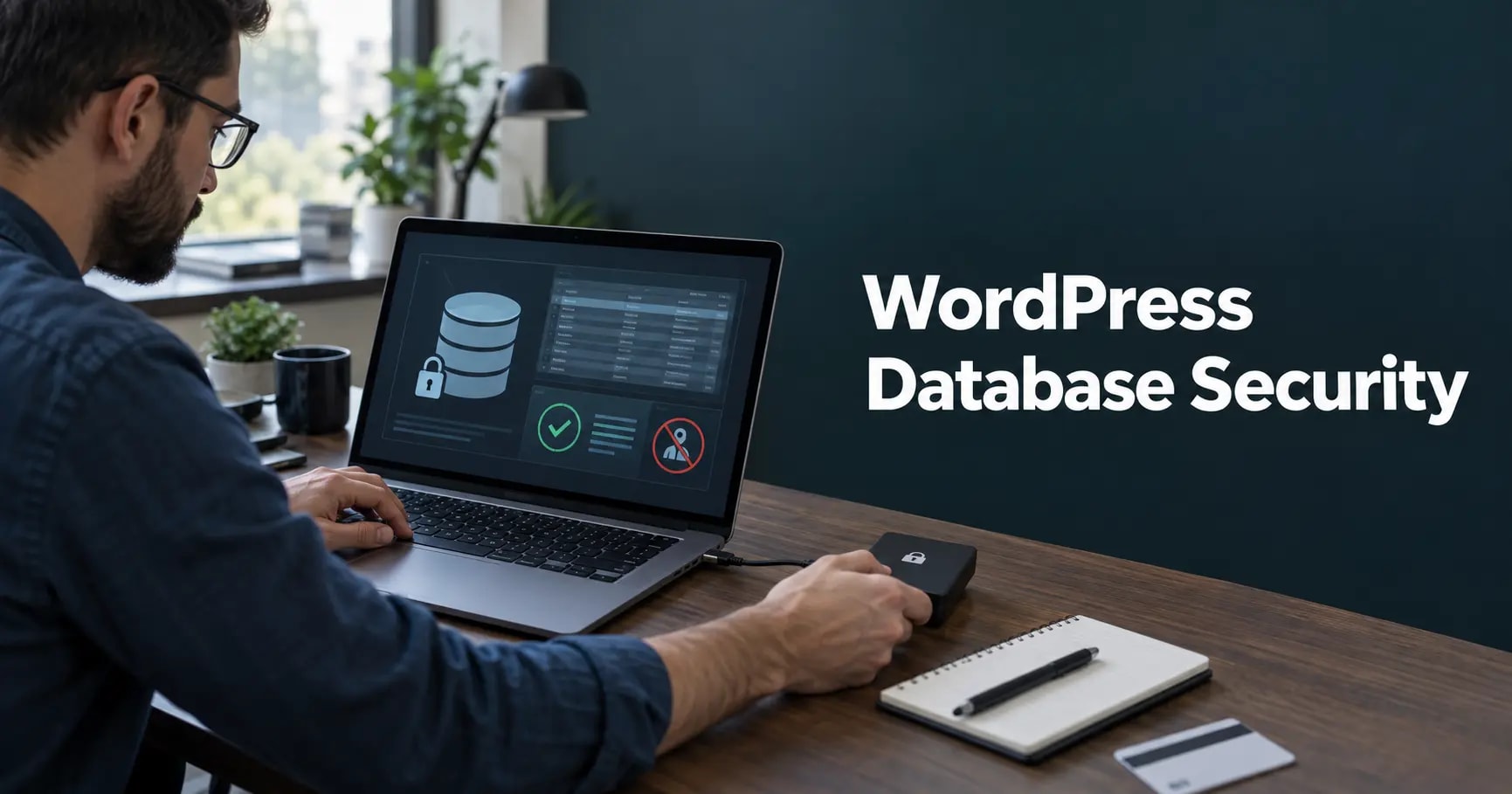
The WordPress database contains the content and relationships that make the site valuable: users, settings, orders, form entries, memberships, plugin data, and authentication-related records. Protecting PHP files while leaving database credentials, backups, or privileges exposed is an incomplete security strategy.
This guide explains how to reduce access, protect credentials, control backups, clean abandoned data safely, and prepare for recovery without turning normal maintenance into a risky database experiment.
Know what the database holds
WordPress stores core content in standard tables, while themes and plugins often add options, metadata, sessions, logs, orders, subscriptions, and custom tables. Before changing permissions or deleting data, inventory business-critical features and identify which components own the records.
Sensitive data may also exist in database exports, staging copies, analytics tables, debug logs, and form plugins. A secure production database does not compensate for an exposed backup archive.
Use the WordPress Backup and Recovery guide to set recovery objectives, retention, isolated storage, and restore testing before major database work.
Use unique credentials and least privilege
Give the WordPress application its own database account and only the permissions required for normal operation. Do not reuse the root account, share credentials across unrelated sites, or grant remote access to every network. Development, staging, reporting, and backup processes should use separate identities when practical.
- Generate a long, unique database password and store it in an approved secret manager.
- Restrict connections to the application server or trusted private network.
- Remove unused database users and rotate credentials after staff or provider changes.
- Require encrypted database connections when the hosting architecture supports them.
- Audit elevated privileges used by migration, maintenance, or reporting tools.
Protect wp-config.php and operational secrets
The application must read the database credentials, but unrelated system users and public web requests should not. Use the hosting provider’s ownership model, keep configuration backups out of the web root, and avoid placing credentials in support tickets, chat messages, repositories, or screenshots.
The WordPress File Permissions guide explains how ownership and numeric permissions work together without relying on unsafe world-writable settings.
Prevent injection at the application layer
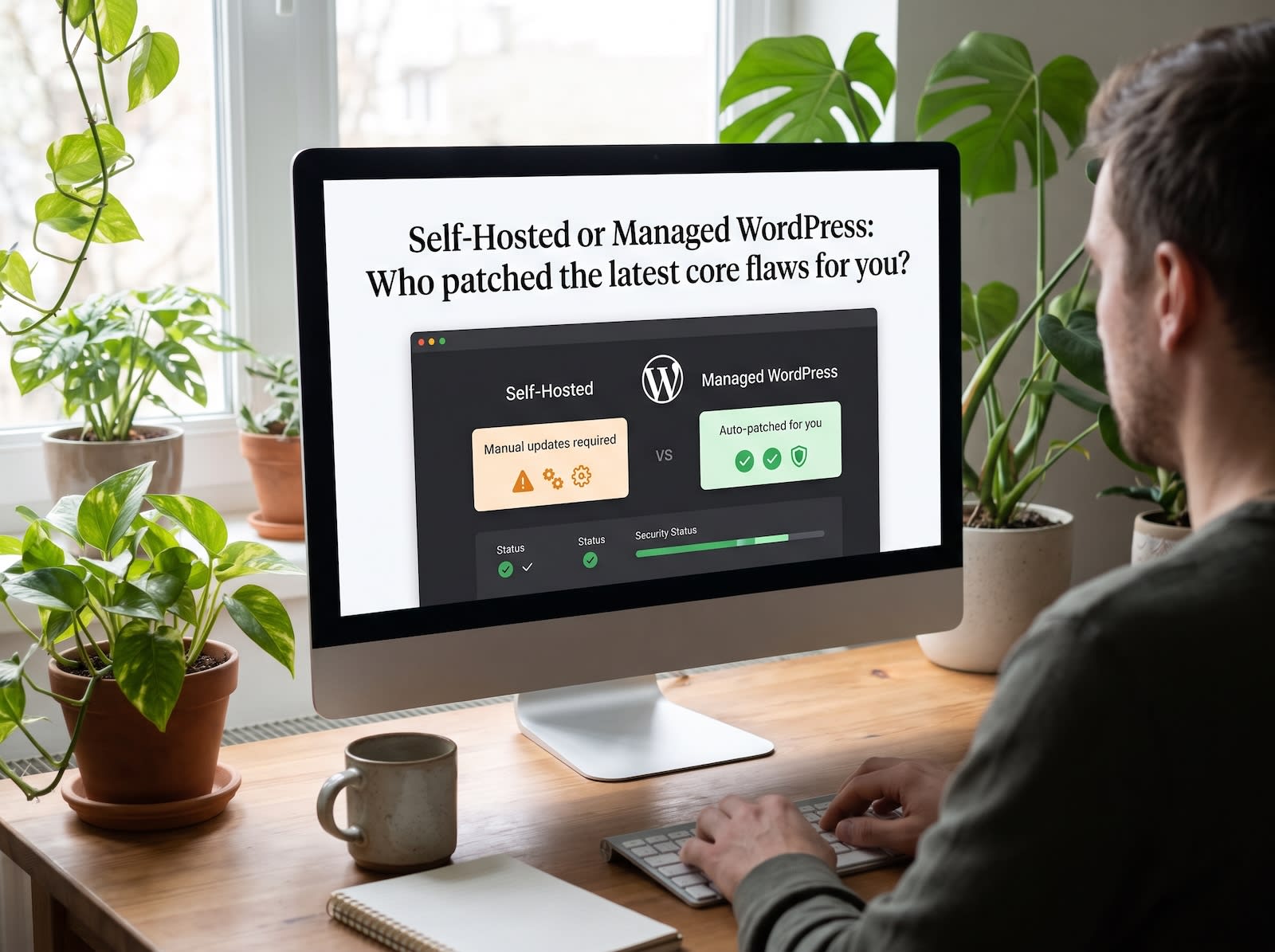
Most WordPress database compromises begin through vulnerable or custom application code rather than a direct database login. Keep WordPress, plugins, and themes updated; remove abandoned components; validate input; and use parameterized database operations in custom development.
A web application firewall can reduce common exploit traffic, but it cannot make vulnerable code safe. Prioritize remediation when a plugin is unmaintained, an exploit is active, or the site handles sensitive customer information.
These failures are included among the WordPress security mistakes that get sites hacked.
Pon estas ideas en práctica.
Desde una mejora puntual hasta una web completa, te ayudamos a definir el alcance y llevarlo a cabo.
Hablemos de mi webDiseño webCuéntanos tus objetivos. Solemos responder en menos de 4 horas con preguntas y próximos pasos prácticos.
Handle backups as sensitive data
Encrypt backups, restrict access, use separate storage credentials, and keep at least one copy isolated from production. Set a retention schedule that supports recovery without keeping personal data forever. Test restores in an isolated environment and record how long recovery takes.
Do not leave SQL exports in public directories with predictable names. A backup can expose password hashes, customer details, private posts, API settings, and operational history even if the live database rejects remote connections.
Clean and optimize safely
Expired transients, old revisions, orphaned metadata, abandoned plugin tables, and oversized logs can waste space. First identify the owner and business requirement for the data. Take a verified backup, test the cleanup on staging, use small reversible changes, and check critical workflows afterward.
Database optimization can reduce overhead but does not automatically improve every slow site. Measure query performance and application behavior before and after the change.
If performance is the goal, review the full WordPress Speed Optimization process rather than deleting database records blindly.
Monitor for suspicious changes
- Unexpected administrators, password resets, or email changes.
- Injected scripts, spam links, or unfamiliar options.
- Large exports, unusual query volume, or repeated authentication failures.
- New database users or permissions outside approved maintenance.
- Unexplained growth in options, sessions, logs, or custom tables.
After a suspected compromise, preserve logs and a copy of the affected database before cleanup. Rotate credentials, review application vulnerabilities, remove malicious data, and confirm that scheduled tasks or hidden administrators cannot restore the infection.
Premier Sol’s Emergency Hacked WordPress Site Recovery covers database inspection, malware cleanup, credential rotation, remediation, and post-recovery verification.
For preventative controls, see Advanced WordPress Security Solutions and the completed
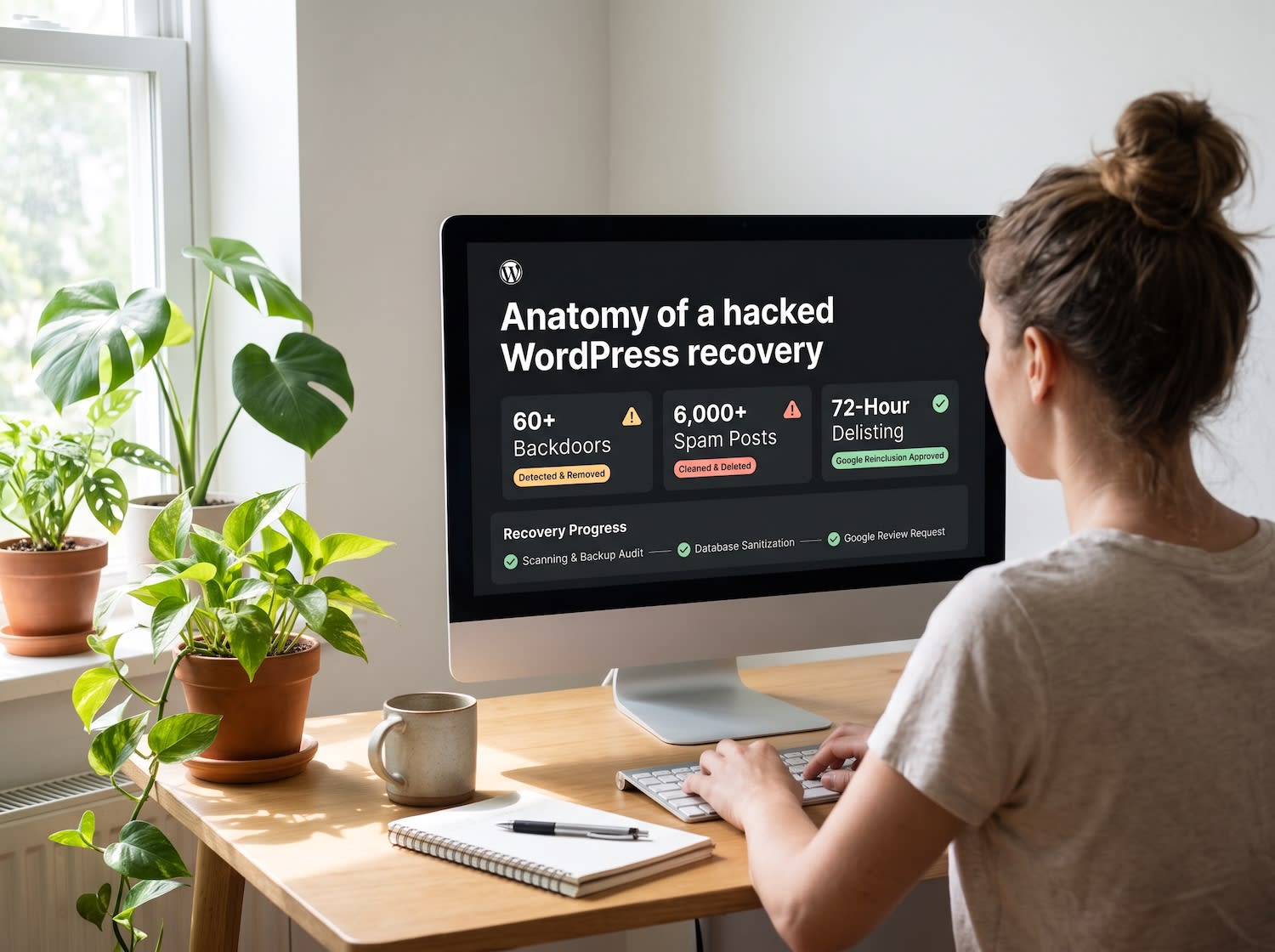
Review the WordPress security recovery case study for a completed remediation example.
Frequently Asked Questions
How do I secure a WordPress database?
Use unique credentials, least-privilege database access, protected configuration files, encrypted connections where supported, controlled backups, prompt updates, and monitoring for unusual queries or account changes.
Should I change the default WordPress database table prefix?
A non-default prefix may reduce noise from simplistic automated attacks, but it is not a substitute for fixing SQL injection vulnerabilities, restricting database privileges, or maintaining secure credentials.
Can I delete old WordPress database tables?
Only after identifying their owner, confirming they are unused, and taking a tested backup. Abandoned plugin tables may contain sensitive data, but deleting an active table can break the site.
How often should a WordPress database be backed up?
Match frequency to the rate of change and acceptable data loss. Active stores, membership sites, and booking systems may need hourly or continuous database protection, while a low-change brochure site may use daily backups.