

A WordPress backdoor is designed to survive cleanup. It gives an attacker a quiet way back into the website after spam pages, redirects or obvious malware have been removed. Some backdoors are short PHP files; others are hidden inside legitimate plugins, scheduled tasks, database options or stolen administrator access.
If the same infection keeps returning, treat it as an incident with persistence—not a single bad file. Start with the broader symptoms in 10 signs your WordPress site has been hacked and preserve evidence before making destructive changes.
What a WordPress backdoor can do
A backdoor may create administrators, reinstall malware, inject links, redirect visitors, exfiltrate data or open a remote command channel. Sophisticated versions run only for particular cookies, IP addresses, referrers or user agents, so the site can look normal to its owner.
A clean scan is therefore encouraging, not conclusive. The goal is to understand how the attacker entered, where persistence exists and whether the wider hosting environment is affected.
Before you investigate
- Take a complete snapshot of files and the database and store it away from the public server.
- Export available hosting, authentication, firewall and application logs.
- Record suspicious files, timestamps, users, URLs and error messages.
- Use a staging copy or isolated environment for examination whenever possible.
- Coordinate with the host before deleting accounts or server tasks that may be evidence.
Use the WordPress security audit checklist to build a consistent inventory of users, software, backups and controls.
Step 1: establish a trusted baseline
Identify the exact WordPress version and every installed plugin and theme. Obtain fresh packages from WordPress.org or the original vendor. Compare core files and extension directories against those trusted copies. A modified file is not automatically malicious, but unexplained differences deserve review.
Do not rely only on modification dates. Attackers can preserve or manipulate timestamps, while legitimate updates change many files at once. Combine hashes, content comparison, ownership, permissions and log evidence.
Step 2: inspect high-risk locations
- Must-use plugins and drop-in files that load automatically.
- Active and inactive theme functions, template files and custom code snippets.
- The uploads directory, which normally should not contain executable PHP.
- wp-config.php, the root index file and web-server rewrite configuration.
- Cache, backup and temporary directories that may still be web-accessible.
- Sibling websites and shared hosting directories.
Look for unfamiliar includes, encoded or heavily obfuscated strings, code that executes request parameters, unexpected remote calls and conditional behavior. Context matters: compressed vendor code can look unusual without being malicious.
Step 3: check users, sessions and application passwords
Compare all privileged accounts with an approved owner list. The detailed rogue WordPress administrator guide explains how to preserve evidence, check outside the dashboard and remove malicious access safely.
Revoke unknown application passwords, integrations and active sessions. If a legitimate administrator may be compromised, secure that person’s email and device before resetting the WordPress password.
حوّل هذه الأفكار إلى نتائج.
من تحسين محدد إلى موقع كامل، نساعدك على تحديد نطاق العمل وتنفيذه.
ناقش موقعيتصميم المواقعشاركونا أهدافكم. عادةً ما نرد خلال 4 ساعات مع طرح الأسئلة والخطوات العملية التالية.
Step 4: inspect scheduled persistence
Review WordPress cron events, server cron jobs, hosting-panel automation and deployment workflows. A scheduled task can recreate a deleted file or user minutes after cleanup. Document unknown jobs before disabling them, then confirm whether they have a legitimate business owner.
Step 5: review the database
Search a safe copy of the database for suspicious domains, scripts, unexpected administrator capabilities and code stored in options, widgets or page-builder content. Check recently changed records against normal site behavior. Avoid untested global replacements on production; table prefixes and serialized data make careless edits risky.
Step 6: remove and replace safely
Quarantine confirmed malicious files outside the web root. Replace altered WordPress core, plugin and theme code with verified packages instead of manually trimming fragments from compromised files. Remove abandoned extensions and unauthorized users only after evidence and legitimate content are handled.
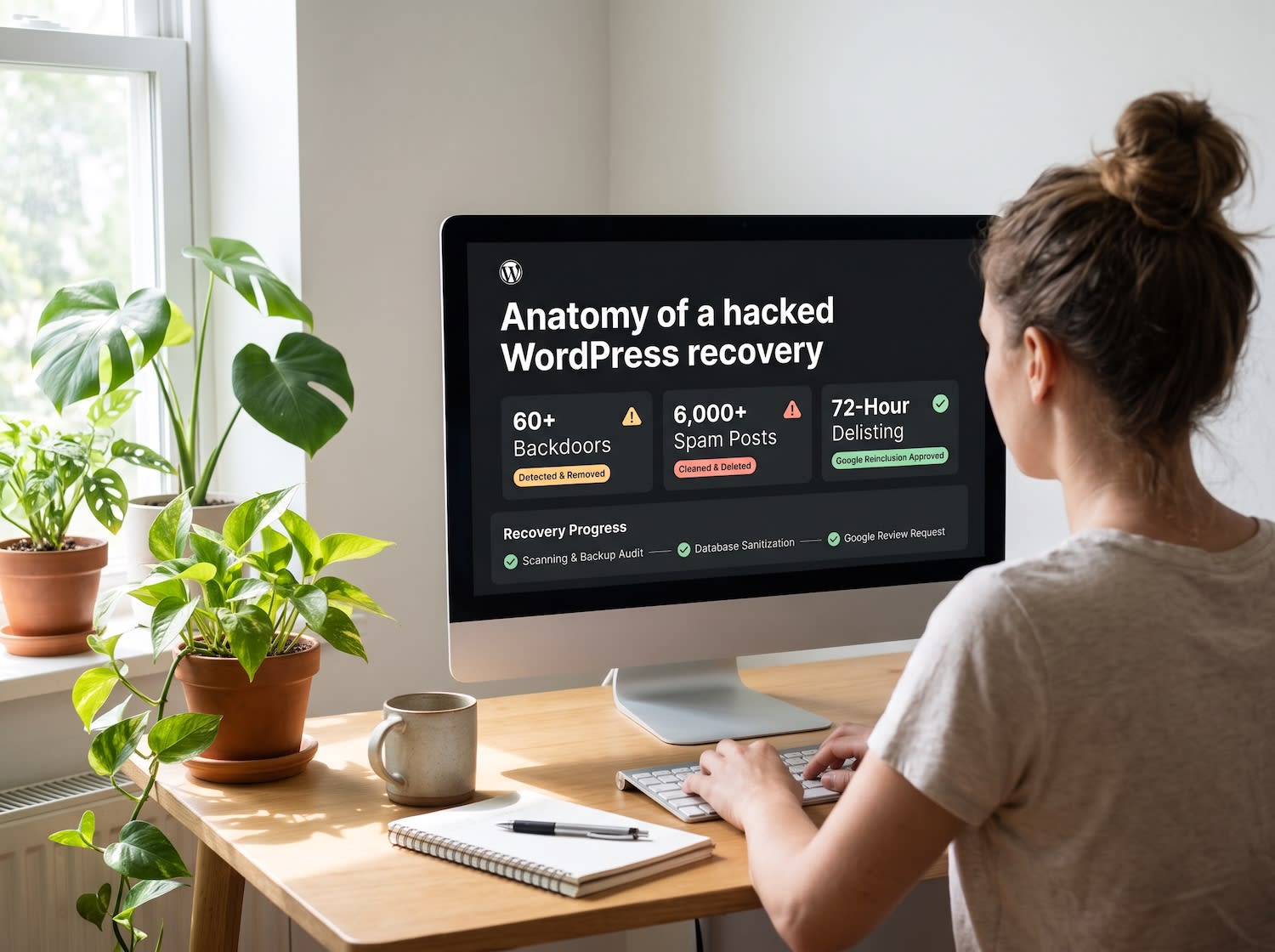
Follow the ordered containment and verification steps in Hacked WordPress Site? Emergency Recovery Steps rather than reopening the site after the first successful scan.
Step 7: close the entry point
Patch or remove vulnerable software, rotate WordPress, hosting, database, SFTP, SSH and deployment credentials, update security salts and enable multi-factor authentication. Check developer devices and shared accounts. If several sites share one hosting account, investigate each one.
Step 8: verify the clean build
Test the site in staging, rescan from more than one perspective, monitor file hashes and compare administrator and scheduled-task inventories. Watch outbound requests and server logs after launch. A returning file points to persistence elsewhere; investigate the process that created it rather than deleting it repeatedly.
When professional recovery is the safer option
If the site processes payments, personal information or critical leads, or the backdoor keeps returning, use Emergency Hacked WordPress Recovery. For prevention and monitoring, review Advanced WordPress Security and our security recovery portfolio.
Frequently asked questions
What is a WordPress backdoor?
A WordPress backdoor is hidden code or unauthorized access that lets an attacker return after the visible malware has been removed. It may be placed in a plugin, theme, upload, must-use plugin, configuration file, database record or server task.
Can a security plugin find every backdoor?
No scanner can guarantee complete detection. Scanners are useful signals, but reliable investigation also compares files with trusted copies, reviews logs, users, scheduled tasks, database changes and the wider hosting account.
Where are WordPress backdoors commonly hidden?
Common locations include modified plugin and theme files, must-use plugins, the uploads directory, wp-config.php, root server files, scheduled jobs and injected database options. Attackers can also hide access outside WordPress.
Can I delete a suspicious PHP file immediately?
Preserve a copy and confirm its purpose first. Deleting the wrong file can break the site or destroy evidence. Quarantine confirmed malicious files outside the web root and replace legitimate software with trusted packages.
Why does the backdoor return after cleanup?
It usually returns because another persistence mechanism or the original vulnerability remains. Stolen credentials, rogue administrators, vulnerable extensions, server-level access and infected sibling sites are common causes.
How do I prevent new WordPress backdoors?
Keep software updated, remove unused components, restrict privileged access, use multi-factor authentication, isolate sites, monitor file changes and users, and maintain tested off-site backups.
Final checklist
- Preserve files, database and logs.
- Compare the installation against trusted software.
- Audit users, sessions, cron jobs and the hosting account.
- Quarantine malware and replace compromised components.
- Patch the cause, rotate credentials and invalidate sessions.
- Monitor for recurrence before declaring recovery complete.