
WordPress login attacks are cheap to automate. Bots can test leaked passwords, common usernames, and large credential lists against thousands of sites while consuming server resources and filling logs. A secure login setup must stop high-volume abuse without blocking customers, editors, or administrators.
This guide builds a practical defense around unique accounts, strong authentication, rate limiting, careful recovery, and useful monitoring. It focuses on reducing real account-takeover risk rather than hiding the login page and assuming the problem disappeared.
Understand the main login threats
Brute-force attacks repeatedly guess passwords. Credential-stuffing attacks use username and password pairs stolen from unrelated services. Phishing captures a valid password—and sometimes a one-time code—through a fake page. Session theft can bypass the login form entirely when an active browser token is stolen.
Each threat needs a different layer. Rate limits slow automated guessing; unique passwords reduce credential stuffing; phishing-resistant authentication protects against fake pages; secure devices and session controls reduce token theft.
Begin by reviewing privileged accounts with How to Find and Remove Rogue WordPress Administrator Accounts. Unknown or unused administrators should be removed before you improve the login flow.
Use individual accounts and least privilege
Never share one administrator username among a team. Give each person a named account and the least powerful role that supports their job. Reserve administrator access for configuration work, and use editor or shop-manager roles for routine content and commerce tasks.
- Remove inactive users promptly and document who approves new privileged access.
- Avoid predictable administrator usernames and public display-name leakage.
- Use a password manager to generate a unique, long password for every account.
- Review application passwords, API tokens, and integration accounts separately.
- End other sessions after a password reset or suspected compromise.
The broader WordPress Security Audit Checklist provides a repeatable review for users, plugins, backups, permissions, and monitoring.
Add strong two-factor authentication
Require a second factor for administrators, editors, store managers, developers, and anyone with access to customer or business data. Passkeys and physical security keys provide strong phishing resistance when supported; authenticator-app codes remain a practical improvement over passwords alone.
Use the complete WordPress Two-Factor Authentication setup guide to plan enrollment, recovery codes, lost-device support, and testing without creating permanent bypasses.
Rate-limit automated attempts
Rate limiting should slow repeated failures by account, network, device signals, and behavior without depending on a single IP address. Start conservatively, watch legitimate failures, and increase delays for repeated abuse. A permanent lockout can become a denial-of-service tool, so provide a secure recovery path.
Apply controls at the CDN, firewall, host, or application layer where they cover the relevant endpoints. Confirm that XML-RPC, API authentication, and other login paths are handled according to business need instead of protecting only wp-login.php.
Pon estas ideas en práctica.
Desde una mejora puntual hasta una web completa, te ayudamos a definir el alcance y llevarlo a cabo.
Hablemos de mi webDiseño webCuéntanos tus objetivos. Solemos responder en menos de 4 horas con preguntas y próximos pasos prácticos.
Protect password reset and recovery
An attacker will choose the easiest path. Secure the email accounts that receive resets, use two-factor authentication there too, and remove abandoned addresses. Support staff should follow a documented identity check before resetting a factor or changing an administrator email.
Avoid revealing whether a username or email exists through different error messages. Keep recovery messages useful without giving automated attackers a directory of valid accounts.
Monitor signals that deserve action
- Repeated failures against one administrator or many usernames.
- Successful logins from unfamiliar countries, devices, or times.
- New administrators, role changes, application passwords, or email changes.
- Unexpected session creation, password resets, or two-factor removal.
- Login spikes that coincide with slow performance or server errors.
Alerts need an owner and a response step. Collecting thousands of events without triage creates noise, while storing too little makes an incident impossible to investigate.
Premier Sol’s Advanced WordPress Security Solutions can combine login controls with firewall protection, hardening, monitoring, and incident readiness.
Respond to suspected account takeover
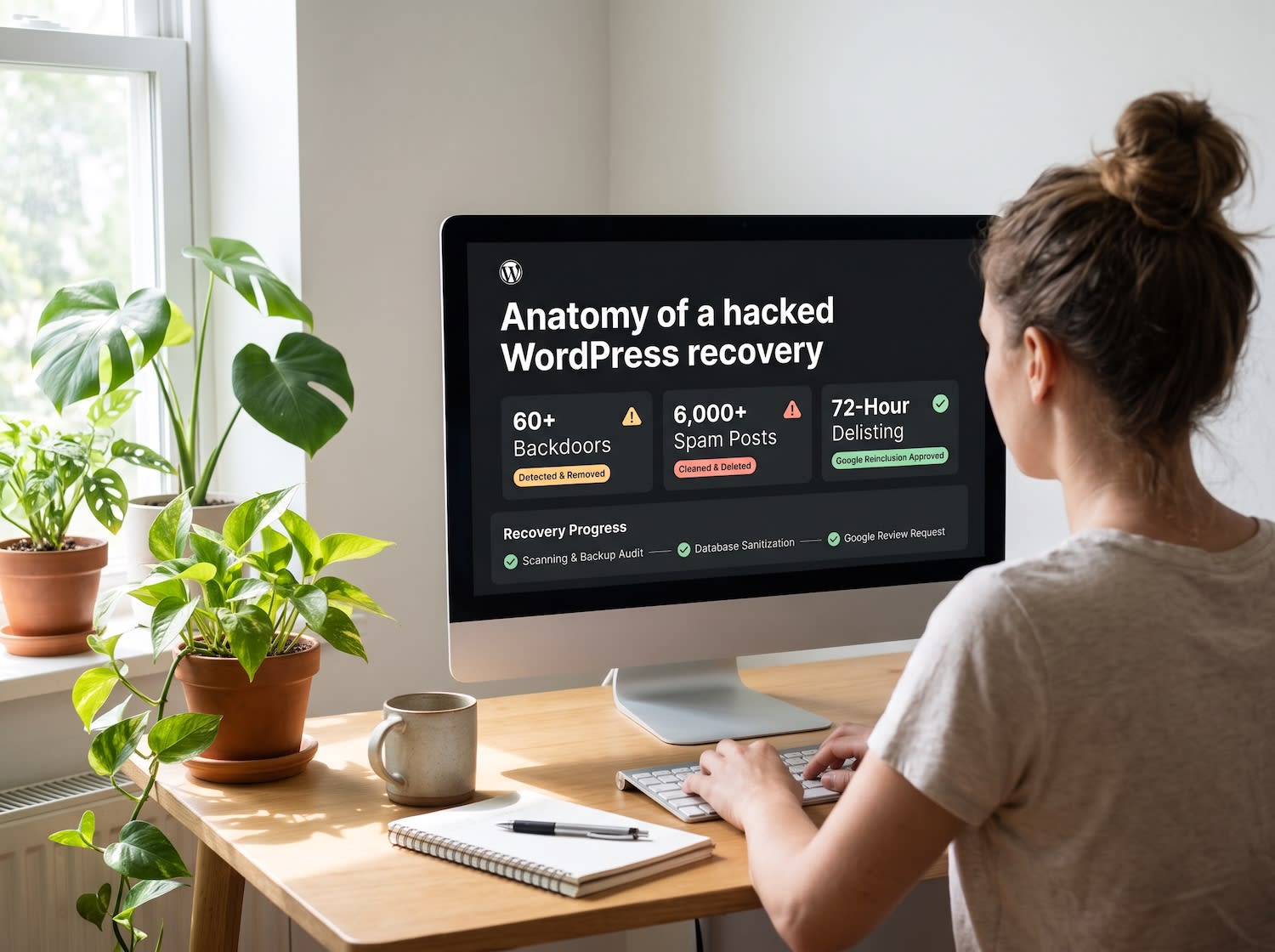
Reset credentials from a known-clean device, revoke sessions and tokens, review content and configuration changes, preserve logs, and scan the site. Do not assume a password change removes a backdoor or reverses malicious administrator actions.
For active compromise, use Emergency Hacked WordPress Site Recovery for containment, cleanup, credential rotation, root-cause remediation, and verification.
Ongoing WordPress maintenance and care plans help keep authentication components updated and security reviews on schedule.
Frequently Asked Questions
How many failed WordPress login attempts should be allowed?
There is no universal number. A small limit with short, progressively longer delays can reduce automated guessing without locking out legitimate users. Monitor false positives and adjust for the site’s audience.
Does changing the WordPress login URL stop brute-force attacks?
It can reduce background noise, but it is not a primary security control. Attackers may discover the new path, and other authentication endpoints can remain available. Use rate limiting, strong credentials, and two-factor authentication.
Should WordPress administrators share one login?
No. Give each person a named account with only the access required. Individual accounts make revocation, two-factor enrollment, and audit logs far more reliable.
What should I do after suspicious WordPress login activity?
Preserve logs, reset affected credentials from a clean device, end active sessions, review administrators and application passwords, scan for unauthorized changes, and investigate how the credentials were obtained.