The highly anticipated WordPress 7.0 release on May 20, 2026, represents a monumental leap forward for the world’s most widely used Content Management System. With the introduction of real-time collaboration, a completely modernized admin interface via DataViews, and a native WP AI Client, the platform is more powerful than ever. However, these major architectural shifts also introduce new vectors for a potential wordpress 7.0 exploit, specifically targeting real-time WebSockets and the new data architecture. Consequently, understanding and implementing the latest WordPress 7.0 security updates is not just recommended—it is absolutely essential for anyone looking to secure WordPress 7.0 site architecture.
In this comprehensive technical guide, we will explore the critical WordPress 7.0 security updates, unpack the necessary procedures for patching wordpress 7.0 vulnerabilities, and provide you with actionable, step-by-step WordPress 7.0 hardening tips. Whether you are a site administrator, a developer, or an agency owner, mastering these security protocols is vital to protecting your digital assets in 2026 and beyond.
The New Era: Understanding WordPress 7.0 Security Updates
Every major software upgrade brings a mix of exciting features and necessary structural changes. The WordPress 7.0 release fundamentally rewrites how certain core elements, like the block editor and database interactions, function. Because the system now supports concurrent multi-user editing and native connections to large language models (LLMs), the surface area for attacks has shifted.
Historically, administrators only had to worry about standard brute-force attacks and outdated plugins. Today, WordPress 7.0 security updates must account for real-time WebSocket vulnerabilities, AI prompt injection, and complex cross-site scripting (XSS) via customized blocks. Keeping up with these WordPress 7.0 security updates requires a proactive mindset, moving beyond simple plugin updates into comprehensive server-side and application-level hardening.
Critical Vulnerabilities Patched Leading Up to WordPress 7.0
To appreciate the security posture of WordPress 7.0, we must look at the foundation it was built upon. During the transition from version 6.9 to 7.0, the core security team address several severe wordpress 7 vulnerabilities that highlight the need for strict security practices in this major release..
- PclZip Path Traversal: A severe flaw allowed attackers to exploit the ZIP extraction process, potentially exposing sensitive server files.
- Authorization Bypass in Notes: As the foundation for real-time collaboration was laid, an authorization bypass was identified in the new "Notes" feature, which could have allowed unauthorized users to view restricted editorial comments.
- XXE Injection: An XML External Entity (XXE) injection vulnerability was patched in the bundled getID3 library, which could be leveraged to extract hidden server data.
The finalized WordPress 7.0 release includes comprehensive WordPress 7.0 vulnerability patching to close these loopholes. However, ensuring these patches are effective requires administrators to actively maintain their environments.
Essential WordPress 7.0 Hardening Tips for Administrators
Securing your website starts with the basics. As an administrator, your primary goal is to protect the gateway to your site. Here are the most critical WordPress 7.0 hardening tips you must implement immediately.
1. Enforce Two-Factor Authentication (2FA) Sitewide
Passwords are no longer enough. Even the most complex password can be compromised in a data breach. Implementing two-factor authentication WordPress setups is the single most effective way to stop unauthorized access.
- Require two-factor authentication WordPress protocols for all user roles, especially Administrators and Editors.
- Utilize app-based authenticators (TOTP) such as Google Authenticator or Authy. Avoid SMS-based 2FA, which is highly susceptible to SIM-swapping attacks.
- Ensure your best security plugin for WordPress 2026 includes native 2FA enforcement capabilities.
2. Limit Login Attempts WordPress 7.0
By default, WordPress allows an infinite number of login attempts, making it a prime target for automated brute-force scripts. To protect your WordPress 7.0 admin security, you must intervene.
- Configure your system to limit login attempts WordPress 7.0 architecture allows. Set a strict lockout policy—for example, blocking an IP address for 24 hours after five failed login attempts.
- Change the default admin username. Never use "admin," "administrator," or your domain name as your login ID.
- Mask or change the default login URL (e.g., move away from
/wp-adminorwp-login.phpto a custom string).
3. Secure wp-config File and .htaccess
Your wp-config.php file is the heart of your WordPress installation, containing your database credentials and core security keys. If a hacker accesses this file, your site is entirely compromised. To secure wp-config file configurations:
- Set Strict File Permissions: Use your server's file manager or SFTP to change the permissions of
wp-config.phpto600or640. This ensures that only the server can read it. - Move wp-config: If your hosting environment allows, move the
wp-config.phpfile one directory above your WordPress root. WordPress will automatically look for it there, hiding it from standard web-accessible directories. - Disable File Editing: Add the following line to your
wp-config.phpfile to prevent malicious actors (who might gain admin access) from injecting code directly into your theme or plugin files via the dashboard:define('DISALLOW_FILE_EDIT', true);
4. Apply the Principle of Least Privilege
Many site owners make the mistake of giving full Administrator access to every team member. WordPress 7.0 admin security demands the Principle of Least Privilege (POLP).
- Only give users the minimum access necessary to perform their jobs. If someone only writes posts, make them an "Author" or "Contributor," not an "Editor" or "Administrator."
- Regularly audit your user list and delete inactive accounts, especially those of former employees or temporary contractors.
The Role of the Best Security Plugin for WordPress 2026
While manual hardening is excellent, continuous monitoring requires automation. Identifying the best security plugin for WordPress 2026 is crucial for maintaining a secure WordPress 7.0 site.
Modern security plugins act as a Web Application Firewall (WAF), filtering out malicious traffic before it ever hits your database. When evaluating the best security plugin for WordPress 2026 (such as Wordfence, Solid Security, or Shield Security PRO), ensure it includes the following features fully compatible with the WordPress 7.0 release:
Navigating WordPress AI Client Security Risks
One of the most defining features of WordPress 7.0 is the native WP AI Client and the Client-Side Abilities API. These tools allow your site to interface directly with Anthropic, Google Gemini, and OpenAI. However, WordPress AI Client security is a completely new frontier for administrators.
Connecting your CMS to generative AI introduces unique risks, primarily regarding data privacy and prompt injection. Here are vital WordPress AI Client security and WordPress 7.0 hardening tips for the modern era:
1. Protect Your API Keys
Your API keys for OpenAI, Gemini, or Claude are as sensitive as your database passwords. If leaked, malicious actors can rack up thousands of dollars in usage fees on your account.
- Ensure that only top-level Administrators have access to the
Settings > Connectorsscreen. - Never hardcode API keys into custom plugins or theme files; always use the secure storage provided by the WP AI Client API.
2. Prevent Prompt Injection
If your site uses AI to generate content based on front-end user input (like a chatbot or a dynamic search tool), you are vulnerable to prompt injection. Attackers can submit malicious instructions to force your AI to expose sensitive data or generate harmful content.
- Implement strict validation and sanitization on all user inputs before they are passed to the WordPress AI Client security layer.
- Use "system prompts" to strictly define the boundaries of what the AI is allowed to discuss or output.
3. Audit AI Content Output
Because AI can hallucinate or generate unsafe scripts (like cross-site scripting payloads disguised as code snippets), never allow AI to publish content directly without human review. Ensure that all generated content is saved as a draft and properly escaped upon rendering.
Put these ideas to work.
From a specific fix to a complete website, we can help you define the scope and get it done.
Discuss my websiteAdvanced WordPress Security SolutionsShare your goals. We typically reply within 4 hours with questions and practical next steps.
WordPress 7.0 Hardening Tips for Developers
For developers creating custom themes and plugins, the WordPress 7.0 security updates require a shift in coding practices. The modernization of the platform means legacy code may no longer be secure.
1. Secure PHP-Only Block Registration
WordPress 7.0 allows developers to register and render blocks entirely via PHP, bypassing JavaScript build pipelines. While convenient, this requires rigorous security checks.
- Always use
wp_kses()to sanitize any dynamic output within a PHP block template. - Validate all block attributes to ensure they match expected data types (e.g., ensuring an ID attribute is strictly an integer).
2. Strengthen REST API Endpoints
The new real-time collaboration features and DataViews rely heavily on the WordPress REST API. If you are building custom endpoints, you must secure them.
- Use robust
permission_callbackfunctions for every custom route. Do not rely solely on front-end hiding. - Implement
current_user_can()checks that accurately reflect the sensitivity of the action being performed. - Require and validate nonces (Numbers Used Once) for all requests that modify state or save data.
3. Handle the Iframed Editor Responsibly
WordPress 7.0 continues to push the block editor into an iframe to ensure styles are isolated. If your plugin scripts interact with the editor DOM, you must ensure cross-context communication is secure.
- Avoid direct DOM manipulation across the iframe boundary.
- Use the official
postMessageAPIs and validate the origin of all messages to prevent cross-site scripting attacks within the editor.
Server and Network Level Hardening for WordPress 7.0
Securing the application is only half the battle. A truly secure WordPress 7.0 site requires robust server infrastructure.
1. Upgrade Your PHP Version
WordPress 7.0 is highly optimized for modern PHP environments. Running outdated versions (like PHP 7.4 or 8.0) exposes your server to unpatched vulnerabilities that bypass WordPress entirely. Ensure your server is running the latest stable version of PHP (8.2 or 8.3).
2. Implement HTTP Security Headers
Security headers tell the visitor's browser how to behave securely when interacting with your site. Implementing these is a cornerstone of advanced WordPress 7.0 hardening tips.
- Content-Security-Policy (CSP): Dictates which domains are allowed to execute scripts on your site, preventing unauthorized malicious scripts from running.
- Strict-Transport-Security (HSTS): Forces browsers to load your site over HTTPS, preventing downgrade attacks.
- X-Frame-Options: Prevents your site from being loaded in an iframe on a malicious domain, neutralizing clickjacking attacks.
3. Disable XML-RPC
Unless you are using the WordPress mobile app or specific legacy integrations like Jetpack, you should disable xmlrpc.php. This file is a massive target for brute-force amplification attacks and DDoS attempts. You can disable it via your .htaccess file or by using your best security plugin for WordPress 2026.
The Importance of Updating the WordPress Database
During the migration to 7.0, you will likely see a prompt in your dashboard to update WordPress database. This is not an optional step.
The WordPress 7.0 security updates include architectural changes to how data is stored, particularly concerning block revisions and real-time synchronization states. When you click update WordPress database, the system restructures your database tables to comply with the new security and performance standards.
- Crucial Warning: Before you ever click the button to update WordPress database, you must take a full, off-site backup of your existing database and files. If the update process is interrupted, it can corrupt your data.
- Ensure your automated backup solutions are functioning properly and are stored remotely (e.g., via Amazon S3, Google Cloud, or a dedicated off-site backup service).
Step-by-Step Security Audit for the WordPress 7.0 Release
To ensure your secure WordPress 7.0 site remains impenetrable, you should conduct a rigorous security audit before and after the update. Follow this checklist:
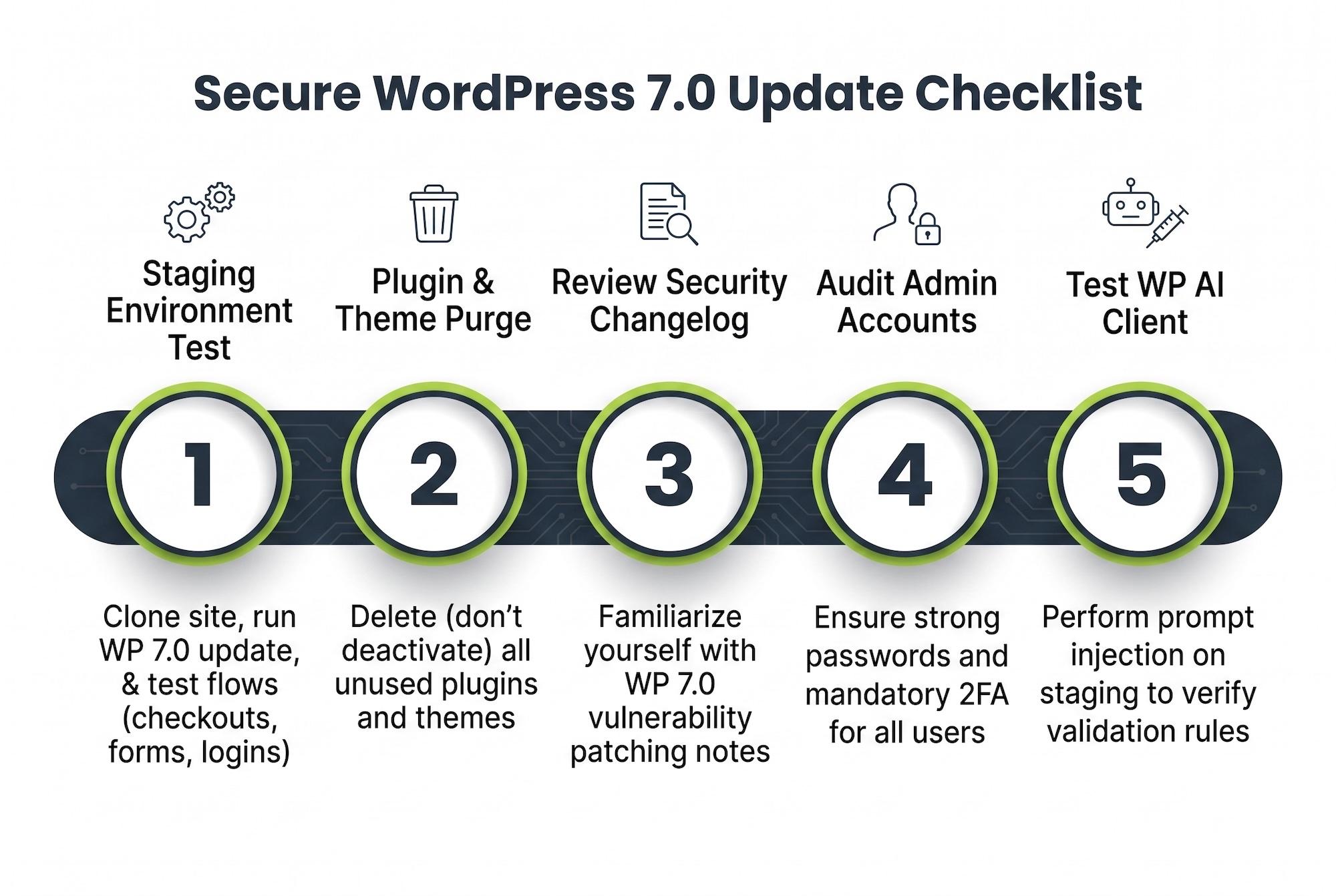
- Staging Environment Test: Never apply a major release directly to your live production server. Clone your site to a staging environment, run the WordPress 7.0 release update, and test all critical flows (checkouts, forms, logins).
- Plugin and Theme Purge: Delete (do not just deactivate) any plugins or themes you are no longer using. Deactivated code can still be exploited by hackers.
- Review the WordPress 7.0 Security Updates Changelog: Familiarize yourself with the exact WordPress 7.0 vulnerability patching notes provided by the core team to understand what flaws have been resolved.
- Audit Administrator Accounts: Review your user list. Ensure that every single user with admin or editor access has strong passwords and mandatory two-factor authentication WordPress enabled.
- Test the WP AI Client: If you enable the new AI features, deliberately try to prompt inject your own site on the staging server to ensure your validation rules hold up, guaranteeing robust WordPress AI Client security.
The Future of WordPress Security
As we look beyond the initial rollout of WordPress 7.0, the landscape of website security will continue to evolve. The integration of artificial intelligence is a double-edged sword; while it empowers creators, it also empowers attackers who use AI to write sophisticated malware and automate vulnerability scanning.
By taking the time to understand the WordPress 7.0 security updates, you are not just reacting to threats—you are building a fortified foundation. Consistent vigilance, utilizing the best security plugin for WordPress 2026, enforcing two-factor authentication WordPress, and applying strict WordPress 7.0 hardening tips will ensure your digital presence remains safe, resilient, and ready for whatever the future holds.
Summary
In summary, the release of WordPress 7.0 introduces groundbreaking features alongside critical new security considerations. To maintain a secure WordPress 7.0 site, administrators must prioritize the latest WordPress 7.0 security updates and engage in continuous WordPress 7.0 vulnerability patching. Essential WordPress 7.0 hardening tips include enforcing two-factor authentication WordPress for all privileged users, configuring systems to limit login attempts WordPress 7.0, and utilizing the best security plugin for WordPress 2026 for automated monitoring. Furthermore, site owners must meticulously secure wp-config file settings, be vigilant about WordPress AI Client security, and always back up before they update WordPress database. By combining robust server-level protections with strict WordPress 7.0 admin security practices, developers and site owners can safely leverage the power of the new WordPress 7.0 release.
Frequently Asked Questions (FAQs)
1. Why are WordPress 7.0 security updates more critical than previous versions?
The WordPress 7.0 release introduces massive architectural changes, including real-time collaboration tools and a native WP AI Client API. These new features introduce new attack vectors, such as complex API vulnerabilities and AI prompt injection, making the latest security updates and hardening practices absolutely essential.
2. How do I secure the new WP AI Client in WordPress 7.0?
WordPress AI Client security requires strict protection of your API keys (ensuring they are only accessible by top administrators). Additionally, developers must sanitize and validate all user inputs before passing them to the AI to prevent prompt injection attacks, and human review should be mandated for AI-generated content before publication.
3. What is the best way to protect my WordPress 7.0 admin login?
To maximize WordPress 7.0 admin security, you should enforce two-factor authentication (2FA) for all users, utilize a plugin to limit login attempts WordPress 7.0 architecture supports, change the default login URL, and never use easily guessable usernames like "admin."
4. How do I secure my wp-config.php file after updating?
To properly secure wp-config file setups, change its file permissions to 600 or 640 via your server or SFTP. You can also move the file one directory level above your WordPress root installation. Lastly, add the define('DISALLOW_FILE_EDIT', true); directive to prevent malicious actors from editing files from the dashboard.
5. Why does it prompt me to update the WordPress database during the 7.0 upgrade?
A major upgrade like WordPress 7.0 introduces changes to how data is structured to support new features and improve security. Clicking update WordPress database reorganizes your tables to meet these new standards. Always ensure you have a complete, off-site backup before executing this database update.
Need Help Securing Your WordPress 7.0 Architecture?
Don't leave your site exposed to a newly discovered wordpress 7.0 exploit. We provide advanced WordPress development, deep-dive security audits, and malware removal for enterprise and high-traffic websites.