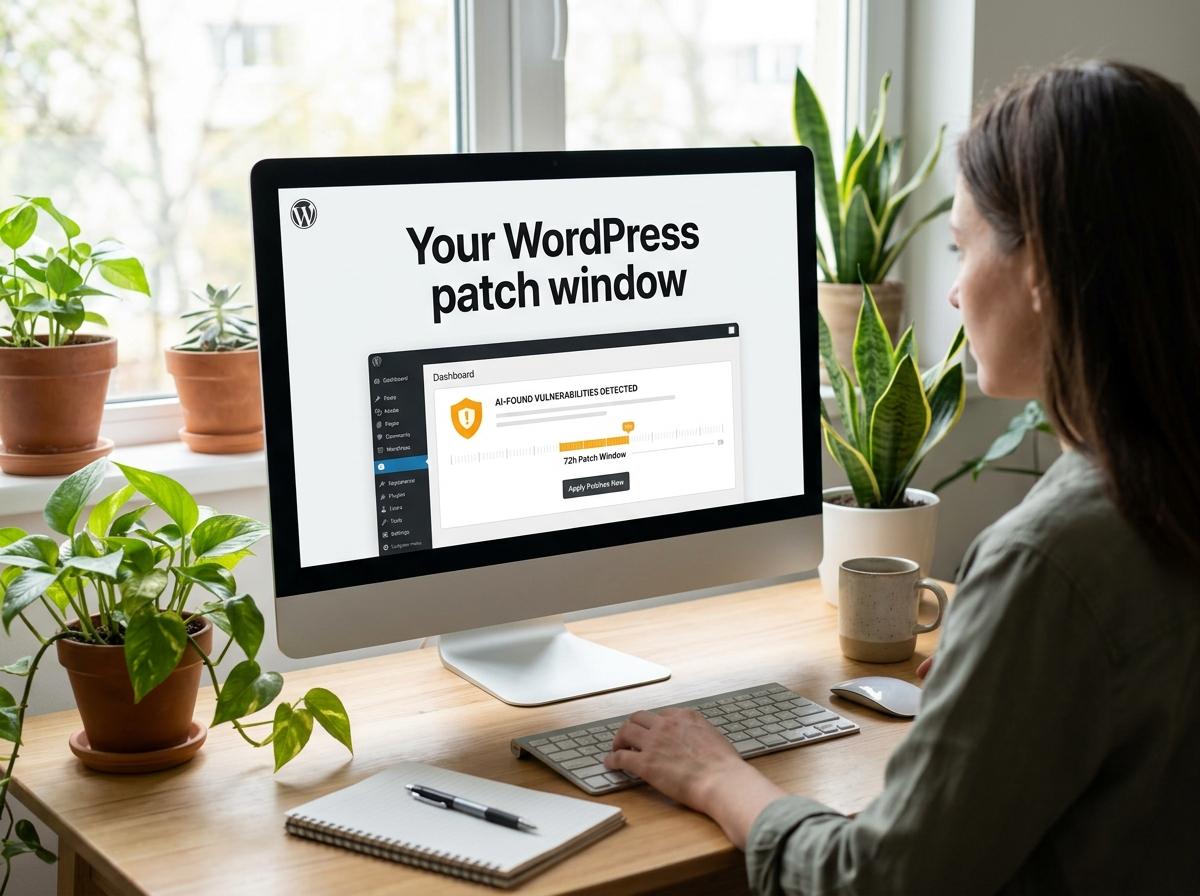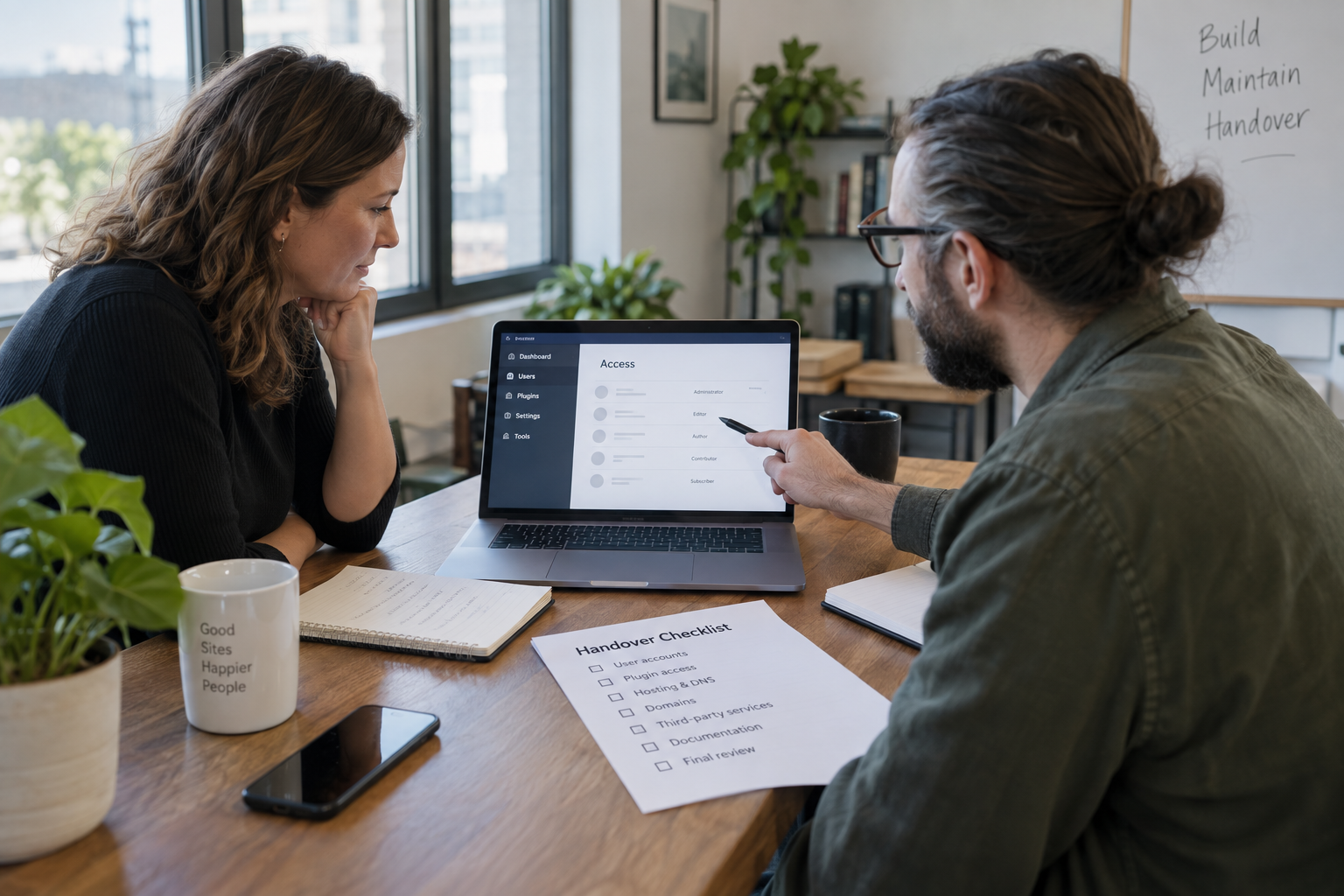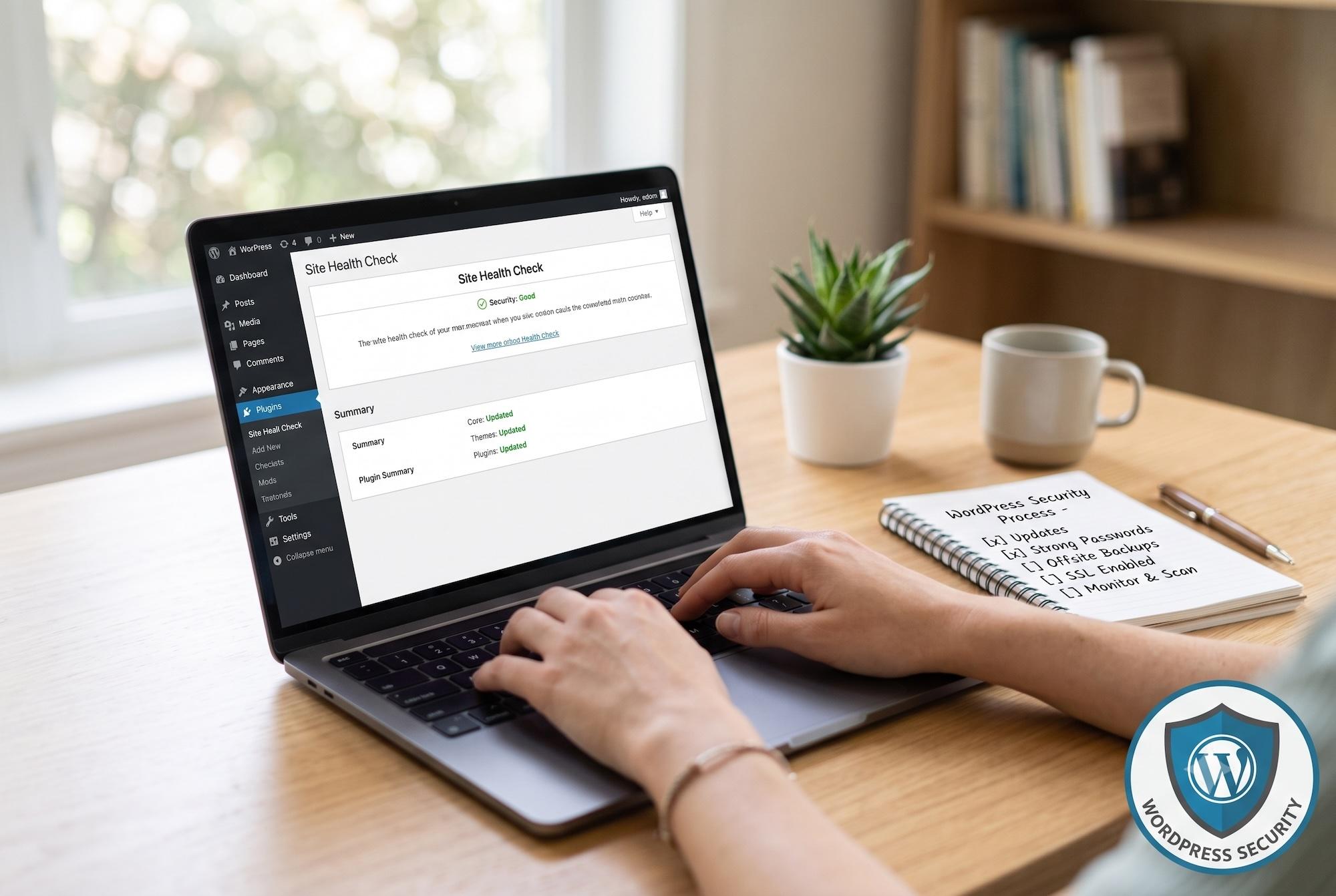
If you run a website on WordPress, you're in good company — WordPress powers a huge share of the internet. But that popularity comes with a downside: WordPress is also one of the most frequently targeted platforms by hackers, bots, and automated attack scripts. A single unpatched plugin, a weak password, or an outdated theme can be all it takes to compromise your site, damage your search rankings, and destroy the trust you've built with your visitors.
The good news? Most WordPress security flaws are preventable. You don't need to be a cybersecurity expert to lock down your website — you just need to understand where the risks come from and follow a practical, layered security strategy. In this guide, we'll break down the most common WordPress vulnerabilities, explain exactly how to secure a WordPress website, and give you an actionable checklist you can start applying today.
Why WordPress Security Matters More Than Ever
WordPress's open-source nature is exactly what makes it flexible and beginner-friendly — but it's also why it attracts so much unwanted attention. Because the core software, along with thousands of plugins and themes, is publicly available, hackers can study the code, find weaknesses, and build automated tools to exploit them at scale across millions of sites simultaneously.
Most WordPress security issues don't actually come from WordPress core itself. They come from:
- Outdated plugins and themes
- Weak or reused passwords
- Poor file permission settings
- Unmaintained or abandoned tools
- Lack of monitoring and backups
A successful attack on your WordPress website can lead to stolen customer data, defaced pages, spam links injected into your content, your site being blacklisted by Google, or complete loss of access to your own dashboard. For a business, that's not just an inconvenience — it's lost revenue, lost trust, and sometimes lost search rankings that take months to rebuild.
Common WordPress Security Vulnerabilities
Before you can protect your WordPress website from hackers, it helps to understand what you're actually defending against. Here are the most common attack vectors:
Recognizing these patterns is the first step toward building a genuinely secure WordPress website.
How to Reduce WordPress Security Flaws: A Complete Protection Guide
1. Keep WordPress Core, Themes, and Plugins Updated
This is, without question, the single most effective WordPress security best practice. Every update — whether it's for WordPress core, your theme, or a plugin — often includes patches for known vulnerabilities. When you delay an update, you're leaving a documented, publicly known door open for attackers.
Best practices:
- Enable automatic updates for minor WordPress core releases
- Review plugin and theme updates weekly, and apply them promptly
- Remove any plugin or theme you're no longer using — inactive software can still be exploited
- Test major updates in a staging environment first if your site uses custom code
2. Strengthen Login Security
Weak login credentials remain one of the easiest ways hackers gain access to a WordPress dashboard. Brute-force attacks specifically target the wp-login.php page, trying thousands of username-and-password combinations until one works.
How to lock this down:
- Never use "admin" as your username — it's the first guess in almost every attack script
- Use long, unique passwords with uppercase, lowercase, numbers, and special characters
- Enable two-factor authentication (2FA) so a password alone isn't enough to log in
- Limit login attempts so bots get locked out after a few failed tries
- Change passwords regularly across your hosting panel, FTP, and WordPress admin
3. Install a Reliable WordPress Security Plugin
A quality WordPress security plugin acts like a 24/7 guard for your site. Tools like Wordfence, Sucuri, and iThemes Security can scan for malware, monitor file changes, block suspicious IP addresses, and add a web application firewall (WAF) that filters malicious traffic before it ever reaches your server.
A WAF is particularly important because it can catch SQL injection attempts, XSS payloads, and known attack signatures in real time — stopping many threats before they reach your WordPress installation at all.
4. Activate an SSL Certificate (HTTPS)
If your WordPress website still isn't running on HTTPS, you're exposing data exchanged between your site and its visitors — including login credentials and payment information — to interception. Beyond security, Google also treats HTTPS as a ranking factor, so activating SSL benefits both protection and SEO.
Most hosting providers now offer free SSL certificates, and many security plugins include a one-click setup to enforce HTTPS across your entire site.
5. Back Up Your WordPress Site Regularly
No matter how well you secure your WordPress website, backups are your safety net. If your site does get compromised, a recent, clean backup lets you restore functionality quickly instead of starting from scratch.
Backup best practices:
- Automate backups so they run without manual effort
- Store copies off-site (Google Drive, Dropbox, or Amazon S3) — never only on the same server
- Follow the 3-2-1 rule: 3 copies of your data, on 2 different media types, with 1 stored off-site
- Test your backups occasionally to confirm they actually restore correctly
6. Restrict Access to Sensitive Files
Certain files, like wp-config.php (which stores your database credentials), should never be publicly accessible. Restricting access to these files through your .htaccess file or server configuration adds a critical layer of protection.
It's also worth disabling file editing from within the WordPress dashboard (Appearance > Theme Editor). If a hacker does gain admin access, this prevents them from directly editing your theme or plugin files to insert malicious code.
7. Disable Directory Browsing
If directory browsing is left enabled, anyone can type a URL like yoursite.com/wp-content/ and see a full list of files and folders on your server. This makes it easy for attackers to identify which themes and plugins you're using and look for known vulnerabilities. Most modern security plugins include a simple toggle to disable this.
8. Choose a Secure, Reputable Hosting Provider
Your hosting environment is your first line of defense. A managed WordPress host that offers server-level firewalls, isolated account architecture, and automated malware scanning gives you a meaningful head start — even before you install a single security plugin.
Look for hosting that includes:
- Server-level firewalls
- Isolated account architecture (so a compromised neighbor site can't affect yours)
- Automated, 24/7 malware scanning
- Built-in DDoS protection
9. Audit User Roles and Permissions Regularly
Over time, WordPress sites accumulate user accounts that no longer need access — a former employee, a one-time contributor, or a test account that was never removed. Each of these is a potential entry point. Review user accounts every month or two, remove anyone who no longer needs access, and assign the minimum permission level necessary for each role.
10. Monitor and Scan for Malware Continuously
Security isn't a one-time setup — it's an ongoing process. Regular malware scans catch issues early, before they escalate into a full site compromise. Many WordPress security plugins offer automated daily or even multiple-times-a-day scans, alerting you the moment suspicious code or unauthorized changes are detected.
Put these ideas to work.
From a specific fix to a complete website, we can help you define the scope and get it done.
Discuss my websiteAdvanced WordPress Security SolutionsShare your goals. We typically reply within 4 hours with questions and practical next steps.
What to Do If Your WordPress Website Gets Hacked
Even with strong precautions, no website is 100% immune. If you suspect your WordPress website has been compromised:
- Don't panic and don't immediately delete everything — you may lose the ability to understand how the breach happened, making repeat incidents more likely.
- Take the site offline or put it into maintenance mode to prevent further damage to visitors.
- Change all passwords immediately — WordPress admin, hosting panel, FTP, and database.
- Restore from a clean, recent backup if one is available.
- Scan thoroughly using a malware removal tool or a professional WordPress security service.
- Review user accounts and remove any unfamiliar or unauthorized admin users.
- Update everything — core, themes, and plugins — once the site is clean.
Building a Long-Term WordPress Security Strategy
Protecting your WordPress website from hackers isn't about applying one single fix — it's about layering multiple defenses so that if one measure fails, another catches the threat. Combining regular updates, strong login security, a trusted security plugin, SSL, reliable hosting, and consistent backups creates a resilient system that can withstand the vast majority of real-world attacks.
If managing all of this feels overwhelming, working with a professional web development and security team can take the guesswork out of the process — from initial hardening to ongoing monitoring and incident response.
Frequently Asked Questions (FAQs)
1. What is the easiest way to improve WordPress security?
Start by installing a reputable WordPress security plugin, keeping everything updated, and enabling two-factor authentication. These three steps alone eliminate a large percentage of common attack vectors.
2. How do I know if my WordPress site has been hacked?
Warning signs include unexpected redirects, unfamiliar admin users, a sudden drop in search rankings, strange pop-ups, or a warning from Google Search Console flagging malicious content.
3. Are free WordPress security plugins good enough?
Free plugins like Wordfence or Sucuri's free tier can cover essential protections like firewalls and malware scanning. However, premium versions typically add faster threat updates, automated cleanup, and priority support, which are worth considering for business-critical sites.
4. How often should I back up my WordPress website?
For most sites, daily backups are ideal, especially if you publish content or process transactions frequently. E-commerce sites with constant order activity may need even more frequent, real-time backups.
5. Can a WordPress security plugin alone fully protect my site?
No single tool guarantees complete protection. A security plugin is an essential layer, but it should be combined with strong hosting, regular updates, backups, and good access hygiene for comprehensive protection.
Summary
WordPress security isn't a "set it and forget it" task — it's an ongoing responsibility. The majority of WordPress security flaws stem from outdated software, weak passwords, poor file permissions, and a lack of monitoring, not from fundamental weaknesses in WordPress itself. By keeping your core, themes, and plugins updated, strengthening login security, using a trusted WordPress security plugin, enabling SSL, maintaining offsite backups, and choosing secure hosting, you can dramatically reduce your risk of being hacked. Treat WordPress security as a continuous process rather than a one-time checklist, and your website will remain a much harder target for attackers.