In the modern digital economy, having a website is no longer a luxury; it is the absolute baseline for doing business, building a personal brand, or launching an e-commerce empire. If you want to create a high-performance digital solution that scales with your ambitions, there is only one platform that truly delivers: WordPress.
Powering over 43% of the internet, WordPress remains the undisputed king of Content Management Systems (CMS). However, the way we construct these sites has evolved dramatically. Gone are the days of wrestling with rigid, hardcoded templates. In 2026, understanding how to build a WordPress website from scratch means leveraging advanced visual builders, dynamic data engines, and AI integrations to create bespoke web experiences.
Whether you are launching a professional portfolio, a dynamic corporate site, or a robust e-commerce platform, this comprehensive tutorial will walk you through every single phase. We will demystify the technical jargon and provide a step-by-step roadmap on how to build a WordPress website from scratch without writing a single line of PHP code.
Phase 1: The Foundation – Domain Name and Web Hosting
Before you can build a house, you need an address and a plot of land. In the web development world, your domain name is your address, and your web hosting is your land.
1. Choosing the Perfect Domain Name
Your domain name (e.g., yourbusiness.com) is your digital identity. When learning how to build a WordPress website from scratch, securing a memorable domain is critical for your branding and SEO.
- Keep it Short and Brandable: Avoid hyphens and numbers. Make it easy to pronounce and type.
- Use the Right Extension: While
.co,.io, and niche extensions are popular, a.comdomain still commands the highest level of universal trust. - Domain Registrars: You can purchase a domain through dedicated registrars like Namecheap or Google Domains (now Squarespace), or bundle it directly with your hosting provider.
2. Selecting High-Performance Web Hosting
Do not sabotage your site before you even begin by choosing ultra-cheap, low-quality hosting. A slow server destroys your Core Web Vitals, frustrating users and tanking your Google rankings.
For a robust start, Managed WordPress Hosting (such as SiteGround, GoDaddy, or WP Engine) is highly recommended. These hosts configure their servers specifically for WordPress, providing automatic updates, daily backups, and server-level caching to ensure your site is blazing fast right out of the box.
Phase 2: Installing WordPress
Once your hosting account is active, it is time to install the core software. If you chose a managed WordPress host, this step is usually done automatically during the signup process.
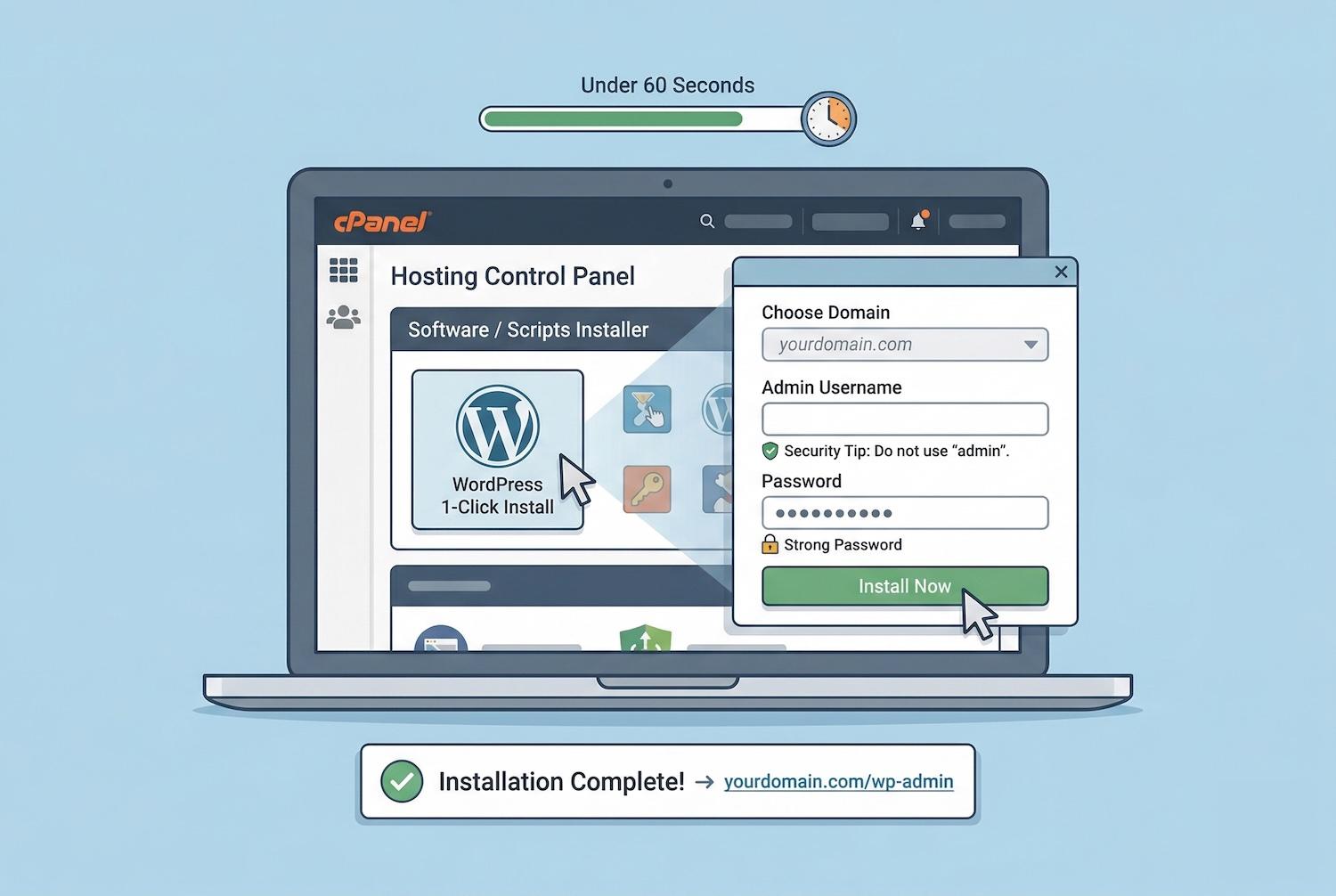
If you are using a standard cPanel host, follow these steps:
- Log into your hosting control panel.
- Locate the "Softaculous Apps Installer" or "WordPress 1-Click Install" icon.
- Click "Install Now."
- Choose your domain name and leave the directory field blank (unless you want the site installed in a subfolder like
yourdomain.com/blog). - Create a strong Admin Username and Password. (Crucial Security Tip: Never use "admin" as your username).
- Click Install. Within 60 seconds, your site will be live.
You can now access your dashboard by navigating to yourdomain.com/wp-admin. This is the control center where you will spend all your time as you figure out how to build a WordPress website from scratch.
Phase 3: Choosing Your Theme and Visual Builder
The default WordPress theme is functional but plain. To build a truly custom, high-performance digital solution, you need the right tools. In 2026, the industry standard involves pairing a lightweight "skeleton" theme with a powerful visual page builder.
The "Skeleton" Theme Approach
Instead of buying a bloated, all-in-one theme from a marketplace, modern developers use themes that get out of the way.
- Hello Elementor: The absolute best choice if you plan to use Elementor. It is incredibly fast and virtually empty, acting as a blank canvas.
- Astra or GeneratePress: Excellent, lightning-fast themes with granular customization options if you prefer using the native Gutenberg block editor.
Selecting a Page Builder
A page builder is a drag-and-drop interface that allows you to design your site visually, eliminating the need to write HTML or CSS.
- Elementor Pro: The undisputed industry leader. It offers a Theme Builder that allows you to custom-design your headers, footers, and blog post templates. Its massive widget library and dynamic content capabilities make it the top choice for both beginners and seasoned pros.
- Divi: An excellent, highly visual alternative with a massive library of pre-built layouts and a lifetime pricing option.
- Avada: A massive, feature-rich website builder that has powered millions of sites. It operates as a full-site editing suite, ideal for those who want an all-in-one ecosystem.
To install your theme: Go to Appearance > Themes > Add New, search for "Hello Elementor," and click Install and Activate. Then, go to Plugins > Add New to install your chosen page builder.
Phase 4: Essential Plugins for Functionality and Dynamic Content
A raw WordPress installation is just the framework. Plugins are the apps that add specific functionality to your site. When learning how to build a WordPress website from scratch, it is tempting to install dozens of plugins. However, plugin bloat slows down your site. Stick to the essentials.
1. Security and Backup Plugins
As detailed in advanced security guides, protecting your site is non-negotiable.
- Wordfence Security or Solid Security: Provides a Web Application Firewall (WAF) and malware scanning to block brute-force attacks.
- UpdraftPlus: Automates your site backups, saving copies of your database and files to secure off-site locations like Google Drive or Dropbox.
2. SEO and Speed Optimization
You want your site to be found on Google and load instantly.
- Rank Math SEO: A highly advanced, user-friendly SEO plugin that helps you optimize your on-page content, meta titles, and sitemaps.
- WP Rocket or LiteSpeed Cache: Essential caching plugins that minimize your CSS/JS files and drastically improve your site's load time.
3. Advanced Dynamic Content (For Pro Builds)
If you are building a directory, a real estate site, or a complex portfolio, standard pages aren't enough.
- JetEngine by Crocoblock: This is a powerhouse plugin for advanced users. It allows you to create Custom Post Types (CPTs), custom fields, and dynamic listing grids that integrate perfectly with Elementor, allowing you to build highly complex, data-driven sites without writing PHP.
4. E-Commerce (Optional)
If your goal is to sell products directly from your site:
- WooCommerce: The most popular open-source e-commerce solution in the world. It transforms your WordPress site into a fully functional online store. It is infinitely customizable, allowing you to manage inventory, set up shipping zones, and integrate payment gateways like Stripe and PayPal.
Put these ideas to work.
From a specific fix to a complete website, we can help you define the scope and get it done.
Discuss my websiteCustom WordPress Web DevelopmentShare your goals. We typically reply within 4 hours with questions and practical next steps.
Phase 5: Structuring Your Site (Pages, Posts, and Menus)
With your tools in place, it is time to structure the architecture of your website.
Creating Core Pages
Every website needs a few fundamental pages. Navigate to Pages > Add New to create:
- Home: The front door of your business.
- About Us: The story behind your brand, establishing trust.
- Services / Products: What you offer and how it benefits the customer.
- Contact: A page with a functional contact form (use a plugin like WPForms or Elementor's native Form widget) and your business details.
Tip: Go to Settings > Reading and set your "Homepage display" to a static page, selecting the "Home" page you just created.
Setting Up Navigation Menus
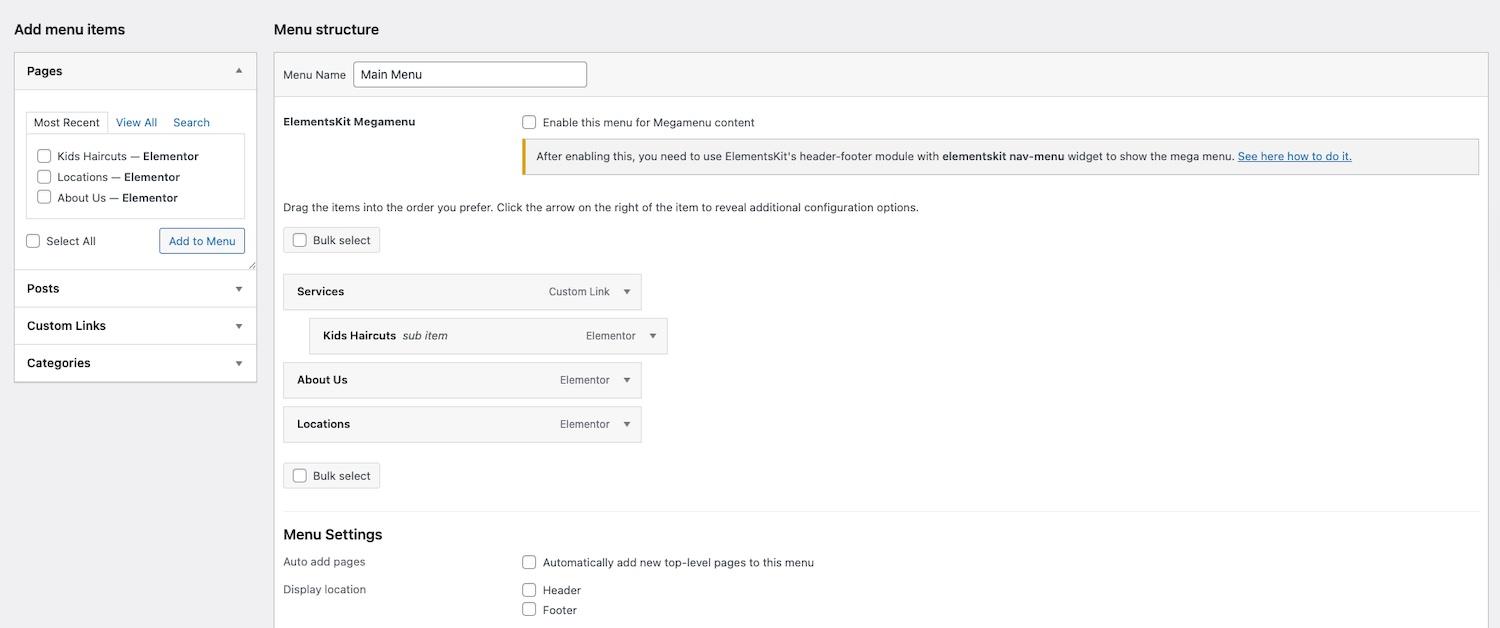
Your users need a way to navigate between these pages.
- Go to Appearance > Menus.
- Click "Create a new menu" and name it (e.g., "Main Navigation").
- On the left side, check the boxes next to the pages you just created and click "Add to Menu."
- Drag and drop the menu items to arrange their order.
- Under "Menu Settings" at the bottom, check the box for "Primary Menu" and save.
Phase 6: Designing Your Site with Elementor
This is where understanding how to build a WordPress website from scratch becomes truly fun. It is time to design.
- Open your Homepage by navigating to Pages, hovering over "Home," and clicking Edit with Elementor.
- You will see a blank canvas on the right and a widget panel on the left.
- Add a Section: Click the "+" icon on the canvas to add a new Flexbox Container (the modern standard for layout structure in 2026).
- Drag and Drop: Drag a "Heading" widget into the container for your main headline. Drag an "Image" widget below it.
- Styling: Click on any widget, and look at the left panel. The "Content" tab controls what it says, the "Style" tab controls colors and typography, and the "Advanced" tab controls margins, padding, and animations.
- Mobile Optimization: Click the "Responsive Mode" icon at the bottom of the Elementor panel. Switch to the Mobile view to ensure your font sizes and padding look perfect on smartphone screens. Google indexes the mobile version of your site, so this step is critical.
Phase 7: Leveraging 2026 AI Integrations
To truly build a modern site in 2026, you should utilize the native AI tools now available in the WordPress ecosystem.
With the release of WordPress 7.0 and its native AI Connectors, you can install official plugins for OpenAI, Google Gemini, or Anthropic Claude. These tools integrate directly into your dashboard, allowing you to:
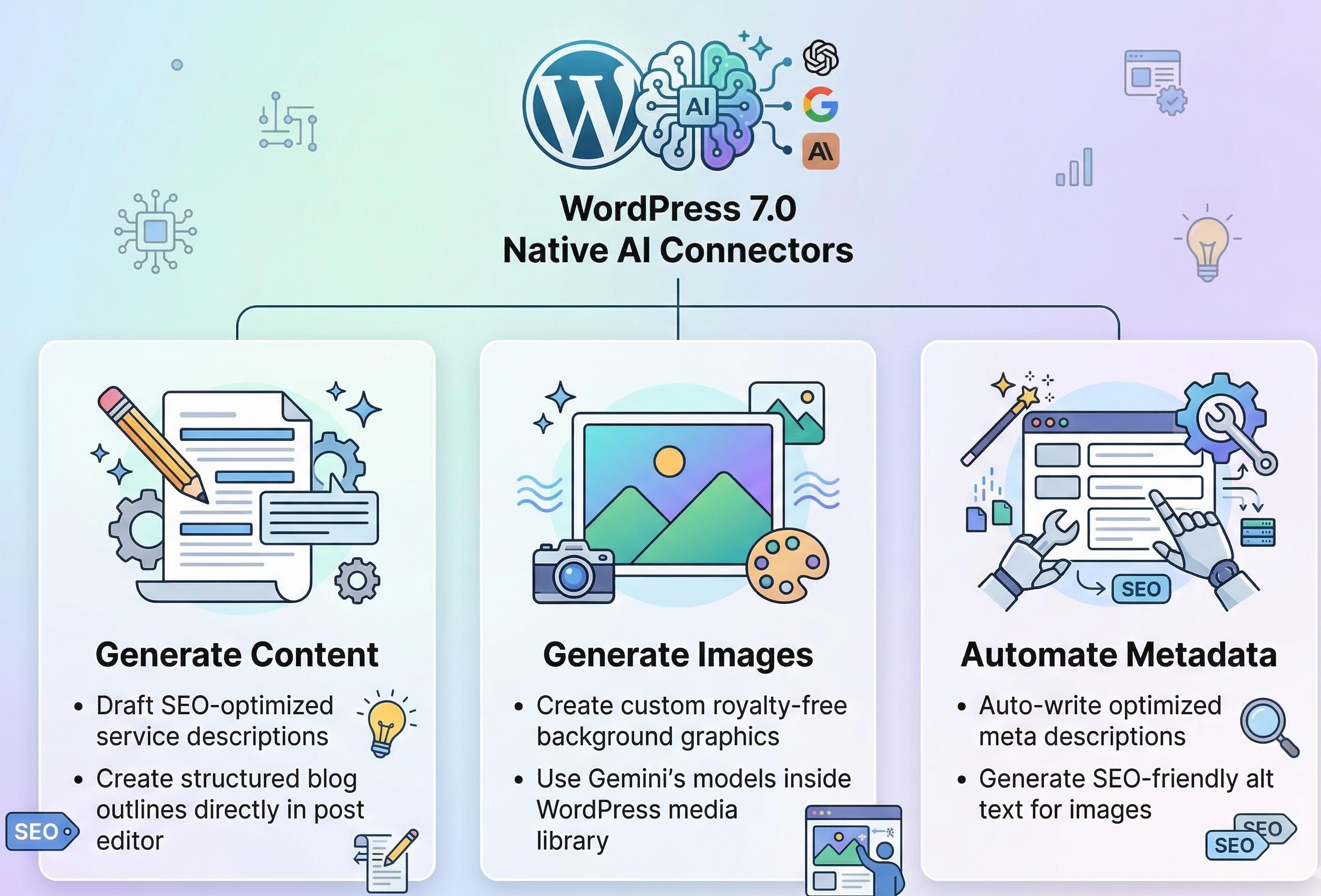
- Generate Content: Ask the AI to draft SEO-optimized service descriptions or blog outlines directly inside the post editor.
- Generate Images: Use Google Gemini's image models to generate custom, royalty-free background graphics for your Elementor hero sections without ever leaving your WordPress media library.
- Automate Metadata: Use AI tools to automatically write optimized meta descriptions and alt text for your images, saving hours of tedious SEO work.
Conclusion
Figuring out how to build a WordPress website from scratch can seem daunting at first glance, but by breaking it down into a strategic workflow, it becomes highly manageable. By securing high-performance hosting, utilizing a lightweight skeleton theme paired with a visual powerhouse like Elementor or Divi, and adding dynamic capabilities through tools like WooCommerce and JetEngine, you have everything you need to create an enterprise-grade digital platform.
Remember, a website is never truly "finished." Once you launch, the real work begins. You must commit to regular maintenance, security monitoring, and ongoing SEO optimization to ensure your new site thrives in the competitive digital landscape. Follow this guide, take it step-by-step, and watch your vision come to life on the web.
Frequently Asked Questions (FAQs)
1. Do I need to know how to code to build a WordPress website?
Absolutely not. In 2026, advanced visual page builders like Elementor Pro and Divi allow you to design complex, highly responsive websites entirely through a drag-and-drop interface. You can build a professional site from start to finish without writing a single line of HTML, CSS, or PHP.
2. How much does it cost to build a WordPress website from scratch?
The WordPress core software is 100% free. However, you must pay for a domain name (~$15/year) and web hosting (~$50-$300/year depending on quality). If you choose to invest in premium tools like Elementor Pro ($59/year) and a premium SEO plugin, a highly professional DIY build will cost between $150 and $400 for your first year.
3. What is the difference between WordPress.org and WordPress.com?
This is a crucial distinction. WordPress.org is the free, open-source software you download and install on your own web hosting (which is what this guide covers). It gives you 100% ownership and unlimited customization. WordPress.com is a hosted service (like Squarespace) that restricts your ability to install custom themes and plugins unless you pay for their highest-tier, expensive business plans.
4. Can I build an e-commerce store with WordPress?
Yes, and it is the most popular way to do so globally. By installing the free WooCommerce plugin, you can instantly transform any WordPress site into a fully functional online store, complete with inventory management, shopping carts, and secure checkout gateways like Stripe and PayPal.
5. How do I make sure my new WordPress site is secure?
Security is vital. To protect your new site, immediately install a security plugin like Wordfence to set up a firewall. Enforce strong, unique passwords for all administrator accounts, enable Two-Factor Authentication (2FA), and ensure you have an automated backup system (like UpdraftPlus) running daily so you can restore your site if anything goes wrong.
Summary
Learning how to build a WordPress website from scratch in 2026 requires a strategic combination of the right hosting, modern themes, and advanced visual builders. This guide outlines the essential phases: purchasing a domain and managed hosting, utilizing a 1-click WordPress installation, and selecting a lightweight theme like Hello Elementor. By leveraging powerful page builders (Elementor, Divi), integrating dynamic content and e-commerce plugins (JetEngine, WooCommerce), and applying essential SEO and security protocols, anyone can construct a high-performance digital solution. With the addition of native AI tools to generate content and images, building a professional, scalable web presence is more accessible and powerful than ever before.
Reference Links