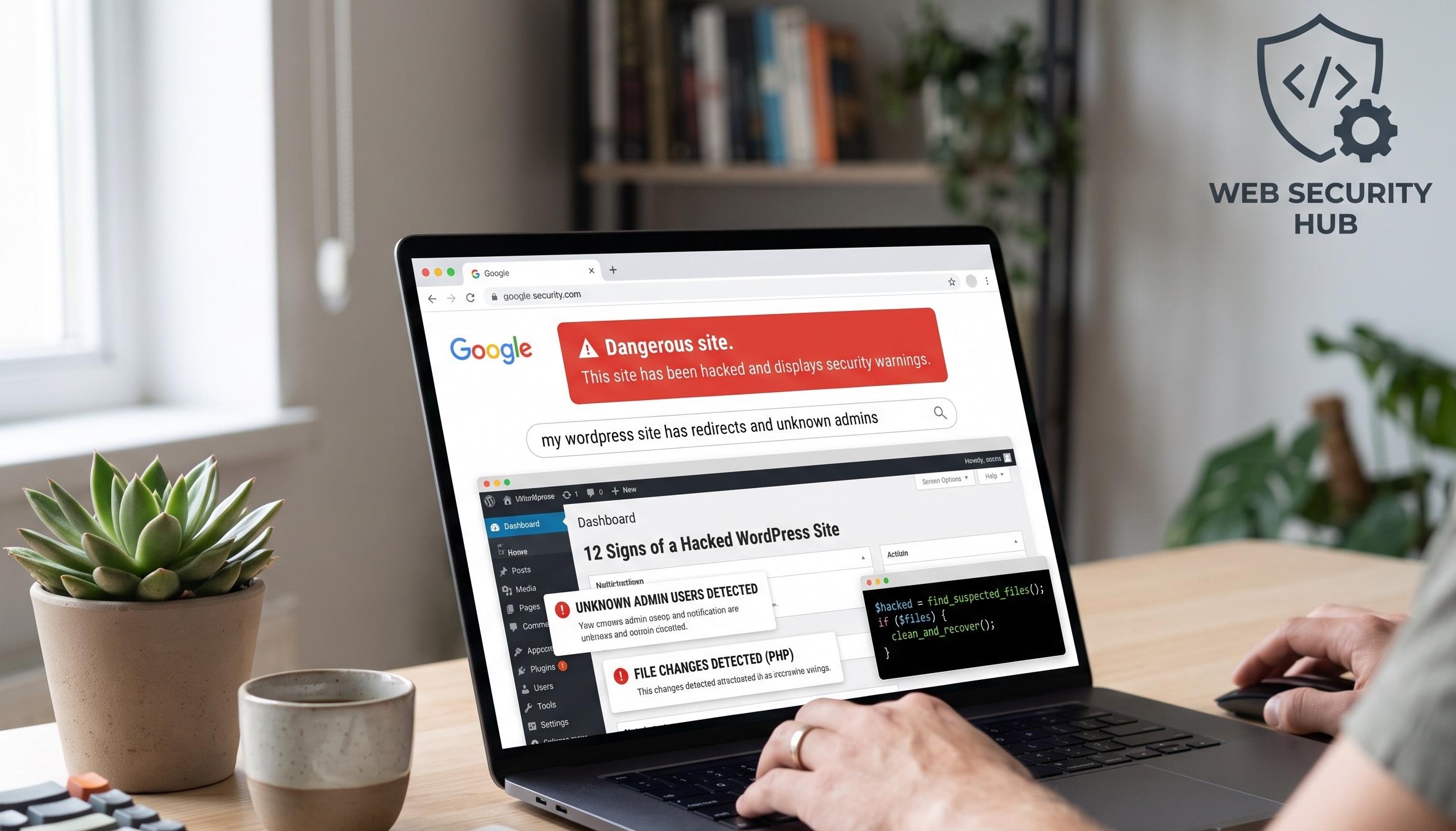
How do you know if your WordPress site has been hacked? Look for these red flags: unexpected redirects to spam sites, admin users you didn't create, a "This site may be hacked" warning in Google, unfamiliar posts or pages, a sudden traffic drop, and files you don't recognize. If you spot even one of these 12 signs below, your site needs attention today — the longer an infection stays live, the more SEO rankings and customer trust it destroys.
Why Hacked WordPress Sites Often Go Unnoticed
Modern attackers don't deface your homepage — that would get them caught. Instead, they hide: injecting invisible spam links for SEO manipulation, redirecting only mobile visitors or only traffic from Google, and installing backdoors for later use. WordPress powers over 40% of the web, which makes it the number one target for automated attacks, and most infections run silently for weeks before the owner notices. That's why knowing the warning signs matters. Here are the 12 that show up most often in the hacked sites we recover.
12 Signs Your WordPress Site Has Been Hacked
1. Google Shows a "This Site May Be Hacked" Warning
The clearest signal there is. Google adds this label (or a red "Deceptive site ahead" browser warning) when its crawlers detect malware or spam on your pages. Check by searching your brand name and site:yourdomain.com in Google, and look for security issues flagged in Google Search Console under Security & Manual Actions.
2. Visitors Get Redirected to Spam or Scam Sites
Malicious redirects send your visitors to pharmacy ads, casino pages, or fake giveaways. They're often conditional — triggering only on mobile devices or only for visitors arriving from search results — so test your site from your phone via a Google search, not just by typing the URL on your desktop.
3. Admin Users You Never Created
Go to Users → Administrators in your dashboard. Any account you don't recognize — especially with random usernames or free-mail addresses — means attackers have full control. In one recovery we handled, bots had bypassed registration filters and created multiple rogue admin accounts that were quietly injecting content for weeks.
4. Posts or Pages You Didn't Publish
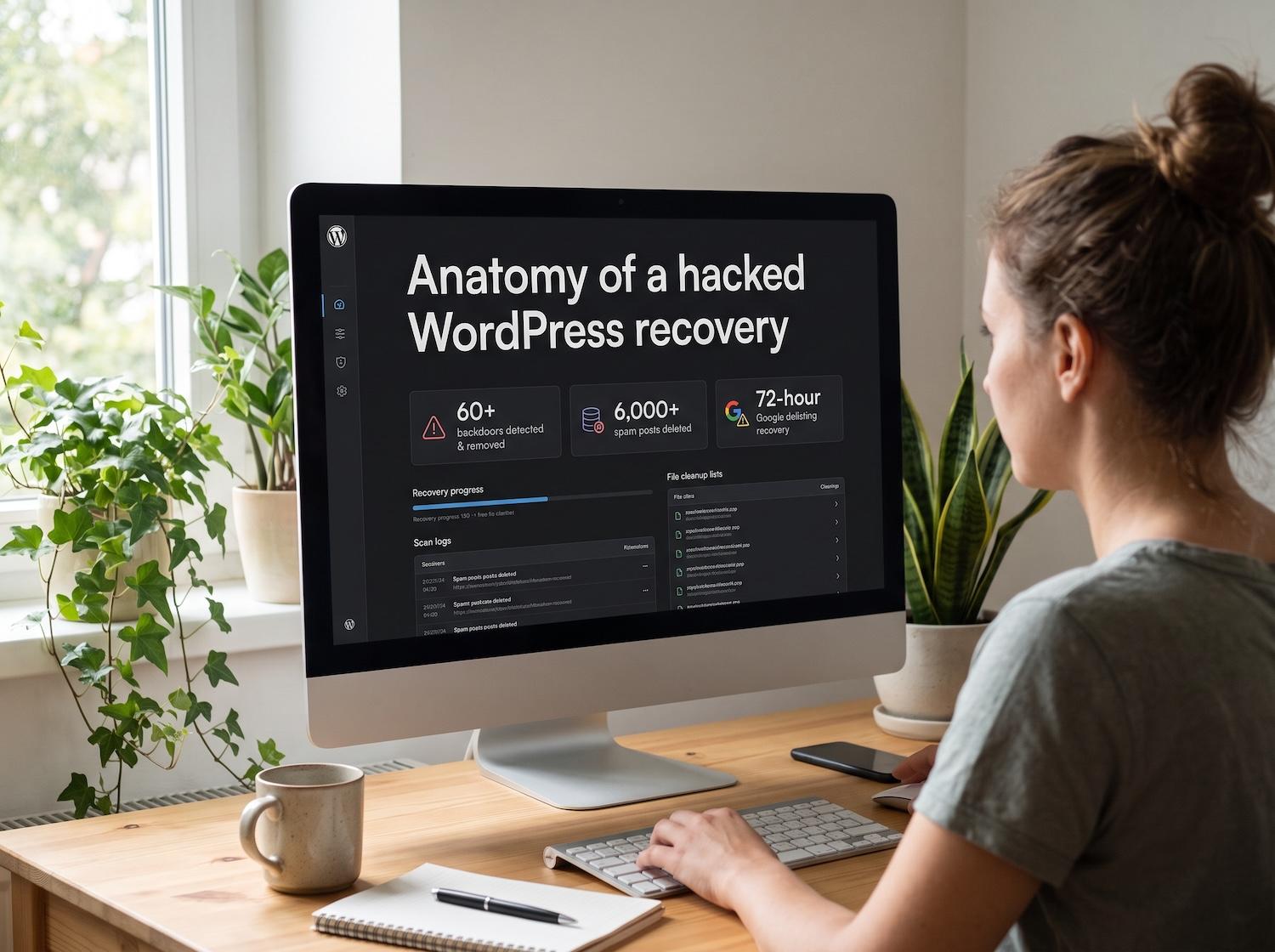
Spam injection floods your database with hidden posts — often in other languages or stuffed with pharma and gambling keywords. Check Posts → All Posts sorted by date, and search site:yourdomain.com in Google to see if pages you've never seen are indexed under your domain. We've cleaned sites with over 6,000 injected spam posts the owner had no idea existed.
5. A Sudden, Unexplained Traffic Drop
When Google detects a hack, it demotes or removes your pages — fast. If your analytics show a cliff-edge drop with no algorithm update to explain it, check Search Console immediately for security issues and deindexed pages.
6. Your Search Results Look Wrong
A classic symptom of the "pharma hack": your pages appear in Google with titles and descriptions about medications, casinos, or products in another language — while the site looks normal when you visit. Attackers show one version to Google and another to you (cloaking). Search your domain in an incognito window to check.
7. Unknown Files or Modified Core Files
PHP files with random names (like wp-tmp.php), PHP files inside your /uploads folder, or recently modified core files are strong infection markers, as is obfuscated code using eval() or base64_decode(). A file-integrity scan with a security plugin compares your core files against the official WordPress versions and flags anything altered.
8. The Site Is Suddenly Slow or the Server Is Overloaded
Malware consumes resources: spam-sending scripts, crypto miners, and bloated databases full of injected content all drag performance down. If your host emails you about unusual resource usage or outbound spam, treat it as a security alert, not a hosting problem.
9. You Can't Log In (or Your Password Stopped Working)
Attackers often change admin passwords or delete accounts to lock owners out while they work. If your credentials suddenly fail and a password reset email never arrives (hacked sites frequently have mail functions hijacked too), assume compromise.
10. Browser or Antivirus Warnings on Your Site
If visitors report that Chrome blocks your site or their antivirus flags it, your domain has likely landed on a blocklist (Google Safe Browsing, McAfee, Norton). You can check your status directly with Google's Safe Browsing site status tool and services like VirusTotal.
11. Strange Pop-ups, Ads, or Content You Didn't Add
Malvertising injections display ads or pop-ups that aren't yours, sometimes only to logged-out visitors so the owner never sees them. Check your site logged out, in incognito, on multiple devices — and take visitor complaints seriously even when everything looks fine to you.
12. Your Security Plugin or Host Sends Alerts
Don't ignore the obvious: file-change notifications, malware scan results, repeated failed-login storms from one IP range, or a suspension notice from your host are direct evidence. An alert you dismiss today is a full infection next month.
Put these ideas to work.
From a specific fix to a complete website, we can help you define the scope and get it done.
Discuss my websiteEmergency Hacked WordPress Site RecoveryShare your goals. We typically reply within 4 hours with questions and practical next steps.
What to Do If You Found Any of These Signs
- Step 1: Don't panic — and don't delete anything yet. Take a full backup of the infected site first (clearly labeled as infected). You may need it for forensics or recovery if cleanup goes wrong.
- Step 2: Change every password. WordPress admin, hosting/cPanel, SFTP, and database — from a clean device.
- Step 3: Scan and identify the infection. Run a malware scan, review recently modified files, and audit your admin user list.
- Step 4: Clean or restore. Either restore from a clean backup that predates the infection, or surgically remove malicious code, spam content, and rogue accounts. Replacing WordPress core files with fresh copies is standard practice.
- Step 5: Close the entry point. This is the step most DIY cleanups skip — and why sites get reinfected within days. Update everything, remove abandoned and nulled plugins, harden the login, and add security headers.
- Step 6: Request a review. Once clean, submit a review request in Google Search Console to remove warnings, and request delisting from any blocklists.
If that list feels overwhelming, or your site handles customer data and you can't afford downtime, this is exactly what our WordPress security services handle: complete malware removal, entry-point closure, blacklist removal, and hardening — in one of our recent recoveries, we purged 6,000+ injected spam posts and the site has stayed clean since.
How to Prevent Your WordPress Site From Being Hacked Again
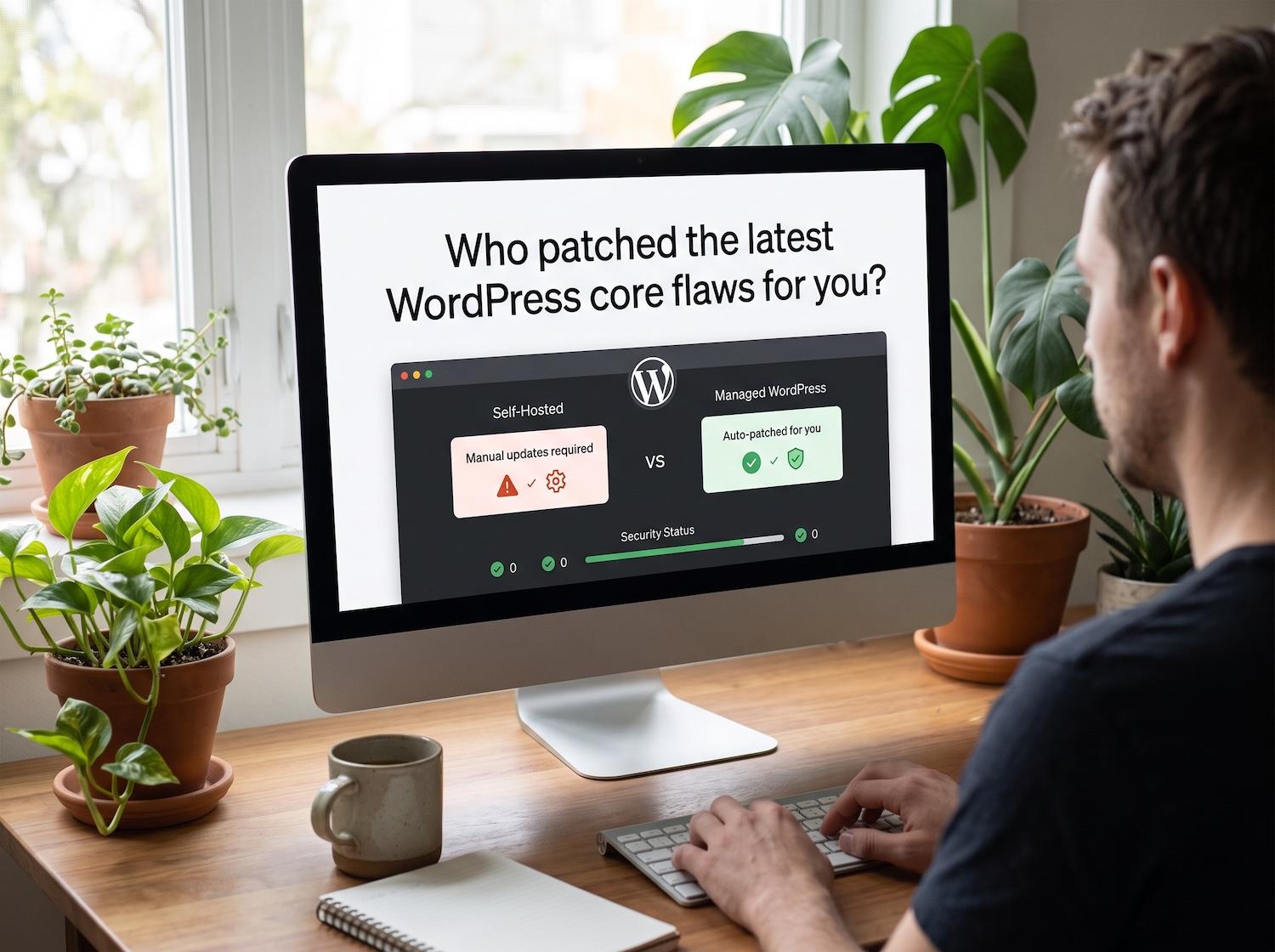
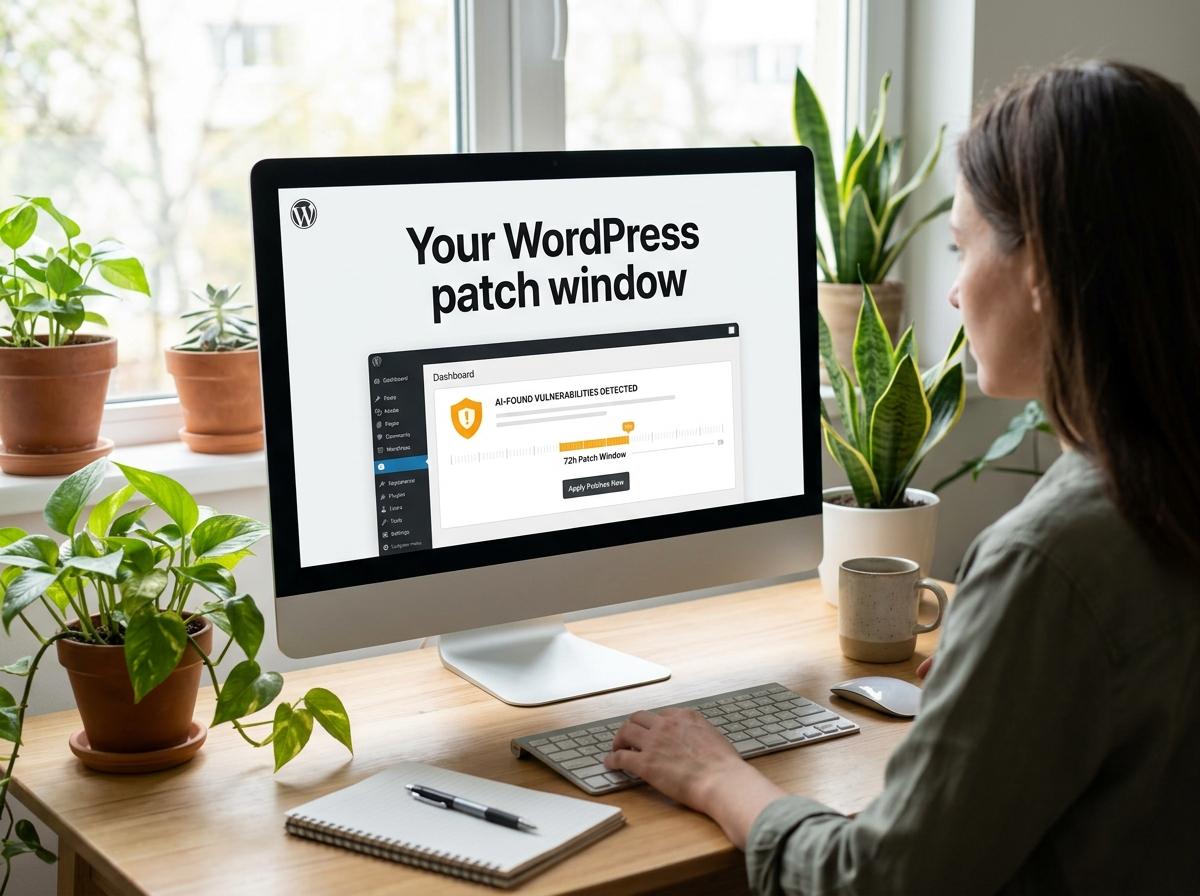
Prevention comes down to consistency: keep core, themes, and plugins updated (outdated plugins remain the #1 attack vector), use strong passwords with two-factor authentication, take automated off-site backups, install a reputable firewall, and remove anything you're not actively using. For the full defensive playbook, read our guides to common WordPress security flaws and how to fix them and the WordPress 7.0 security updates.
Frequently Asked Questions (FAQs)
1. How can I check if my WordPress site has been hacked for free?
Start with three free checks: Google Search Console's Security Issues report, Google Safe Browsing's site status tool, and a scan with a free security plugin. Then manually review your admin users, recent posts, and a site:yourdomain.com search in Google.
2. Does a hacked website affect SEO rankings?
Severely. Google demotes or deindexes hacked pages, spam content dilutes your site's topical authority, and warning labels crater your click-through rate. Traffic drops of 50–90% are common, and recovery takes weeks after cleanup — which is why acting on the first warning sign matters.
3. Should I just delete my site and rebuild it?
Almost never. A full rebuild loses your content, URLs, and ranking history, and it usually isn't necessary — a structured cleanup or a restore from a clean backup preserves everything. Reserve rebuilding for cases where no clean backup exists and the infection touches everything.
4. My site was cleaned but got hacked again. Why?
Because the cleanup removed the symptoms but not the cause: a leftover backdoor or the original vulnerability. Reinfection within days is the signature of an incomplete cleanup — professional recovery always includes identifying the entry point and closing it.
Summary
The fastest ways to know if your WordPress site has been hacked are Google's security warnings, unexpected redirects, unknown admin users, spam posts you didn't create, and sudden traffic drops — backed up by file-level signs like modified core files and PHP files in your uploads folder. If you find any of the 12 signs above: back up first, change every password, scan, clean, close the entry point, and request a Google review. And if you'd rather have specialists handle it, contact Premier Solutions for a free security assessment — we typically respond within hours.