Your new publishing tool asks for a WordPress password. It seems like a small step. Yet the account you choose can give that tool far more power than it needs.
WordPress application passwords help you connect apps without sharing your main login. The hard part is deciding who the app acts as, where its secret lives, and how to stop it later. This guide walks through those choices.
What is an application password?
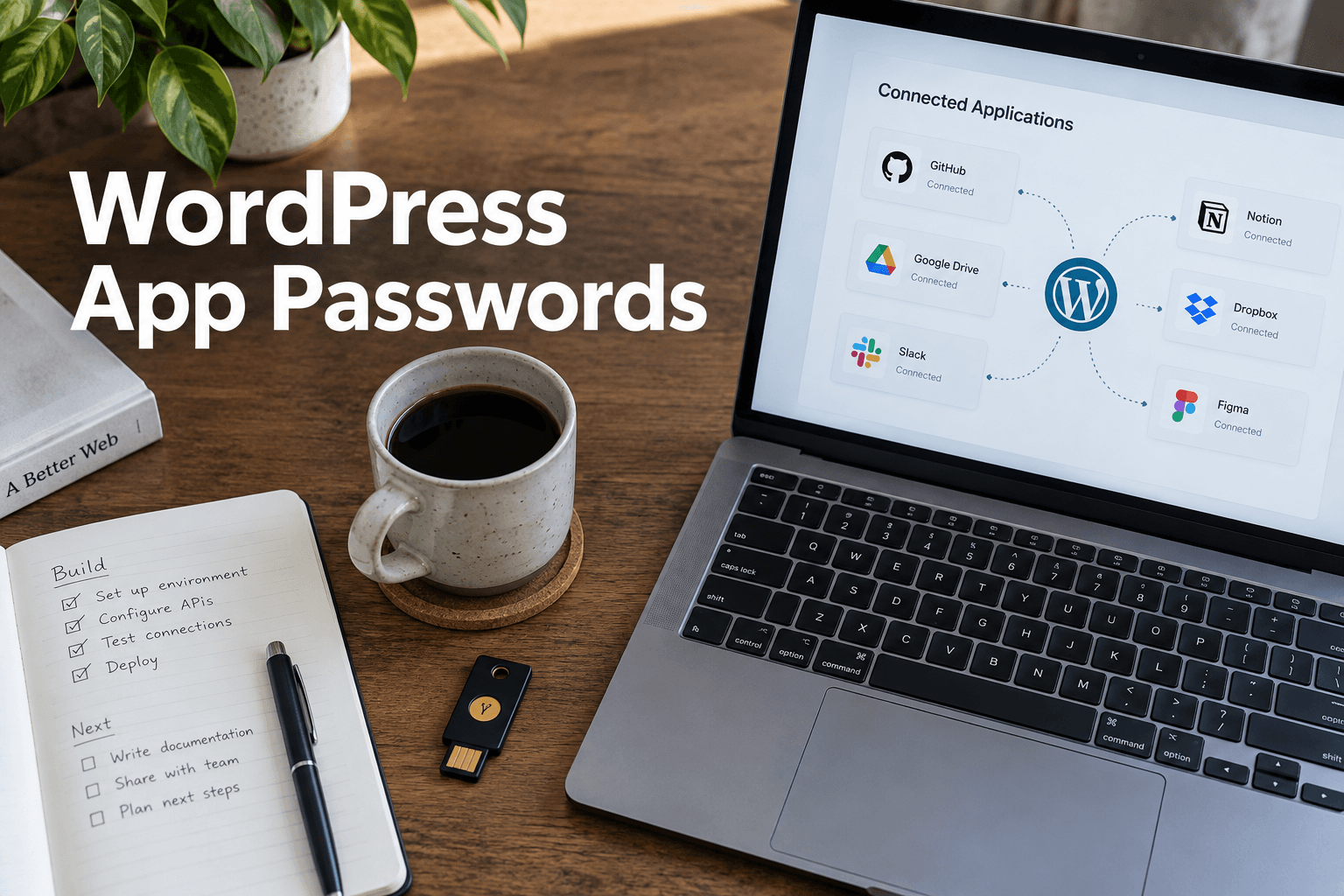
It is a separate secret tied to a WordPress user. An app uses it to prove its identity when it calls the site's API. You can revoke that secret on its own. It is not a password for signing in through the normal dashboard login screen. See the official WordPress overview for the core behavior.
Think of it as a key for one connection. The key's name tells you what it is for. Its power still comes from the user account behind it. Naming a key “read only” does not make it read only.
Pick the account before you create the key
List the job first. Does the tool read public posts, save drafts, upload media, or edit live pages? Public content may not need a login at all. A tool that saves drafts should not need to install plugins.
Create a dedicated account when that helps keep the task separate. Give it the smallest set of rights that lets the work succeed. If standard roles are too broad, ask a developer to design and test a custom role.
For example, a draft-writing tool may need to create posts. It may not need to publish them. Test both cases: saving a draft should work, while the forbidden action should fail.
Our REST API security guide explains the access checks behind these requests. A valid secret should never replace a check on what the user may do.
Create one secret for each app
In the relevant user's profile, find Application Passwords. Use a clear name, such as “Editorial sync — production.” Generate the password and store it at once. WordPress shows the plain secret only when it is created.
Give staging and production separate credentials. Give each vendor its own key. This makes a later change far easier: you can stop one connection without breaking the rest.
Add the app owner and review date to your team records. Do not put the secret in that record unless it is an approved secret vault. Our secrets management guide covers how to store these values.
Put these ideas to work.
From a specific fix to a complete website, we can help you define the scope and get it done.
Share your goals. We usually reply within one business day with questions and practical next steps.
Keep the secret on the server
Use HTTPS for the connection. Put the password in the app's protected server settings or secret store. Never place it in public JavaScript, a web page, a screenshot, or a shared support ticket.
A common mistake is to put the secret in a browser app because the first test works. Anyone who can inspect the request may then copy it. Add a trusted server layer that holds the credential and exposes only the actions the browser needs.
If you use a workflow tool, limit who can view or change its credentials. Our cover this part of an integration's design.
Test the whole connection
Start with a harmless read request. Next, try the exact task the app needs on a test site. Check what happens when the password is wrong, missing, or revoked.
A failed request does not always mean the secret is wrong. A proxy may strip the authentication header. A security rule may block the route. The account may lack a required right. Check those layers before granting more access.
Use our to keep real customer data out of the test. Record the expected result for each allowed and blocked action.
Make revocation part of the handover
For a planned rotation, add the new secret, update the app, and test it. Then revoke the old one and confirm that it fails. If a secret has leaked, revoke it promptly and investigate the exposure.
Do this when a vendor leaves, a workflow is retired, or a device is lost. Review unused keys as part of routine site care. A dashboard login change is not a substitute for checking app credentials.
Our can include that review. The goal is simple: every working key should have a known owner and a current purpose.
Frequently asked questions
Can an application password log into wp-admin?
No. It is meant for supported API requests, not the normal browser login form.
Is each application password limited to one API route?
Not by its name or by default. Access depends on the user account and the endpoint's permission checks. Use a narrow role or extra controls when needed.
Should I give every app the same password?
No. Separate credentials let you revoke one app without breaking the others. Use different secrets for test and live sites too.
Does dashboard two-factor authentication protect an app password?
Do not assume it does. App passwords are a separate access path. Protect, review and revoke them separately, and check how your security plugin handles them.