A security update is not finished when the progress bar disappears. It is finished when you know the right version is installed and the site still does its job.
WordPress released version 7.1.2 on September 22, 2026, to fix a critical security flaw. The official advice is to update immediately. If you manage a business website, start by checking its installed version today. Do not assume a host or background task has already done it.
This guide explains the release and gives you a focused checklist for the update, the checks that follow, and the problems that need a separate response. Release details were checked on September 24, 2026.
What does WordPress 7.1.2 fix?
According to the official WordPress release announcement, the flaw can let someone without a login cause WordPress to include a readable local PHP file outside the active theme directories. Under certain server and theme conditions, this can lead to remote code execution.
In plain language, a weakness in how a page selects its template could become a route for unwanted code to run. That does not mean every affected website has been compromised. It does mean the patch deserves prompt attention.
The advisory is identified as CVE-2026-87902. WordPress also says the fix was backported to eligible older branches, through 4.7. Only the most recent WordPress version is actively supported. If your site must remain on an older branch, have the maintainer confirm the correct patched release.
First, find out what is actually running
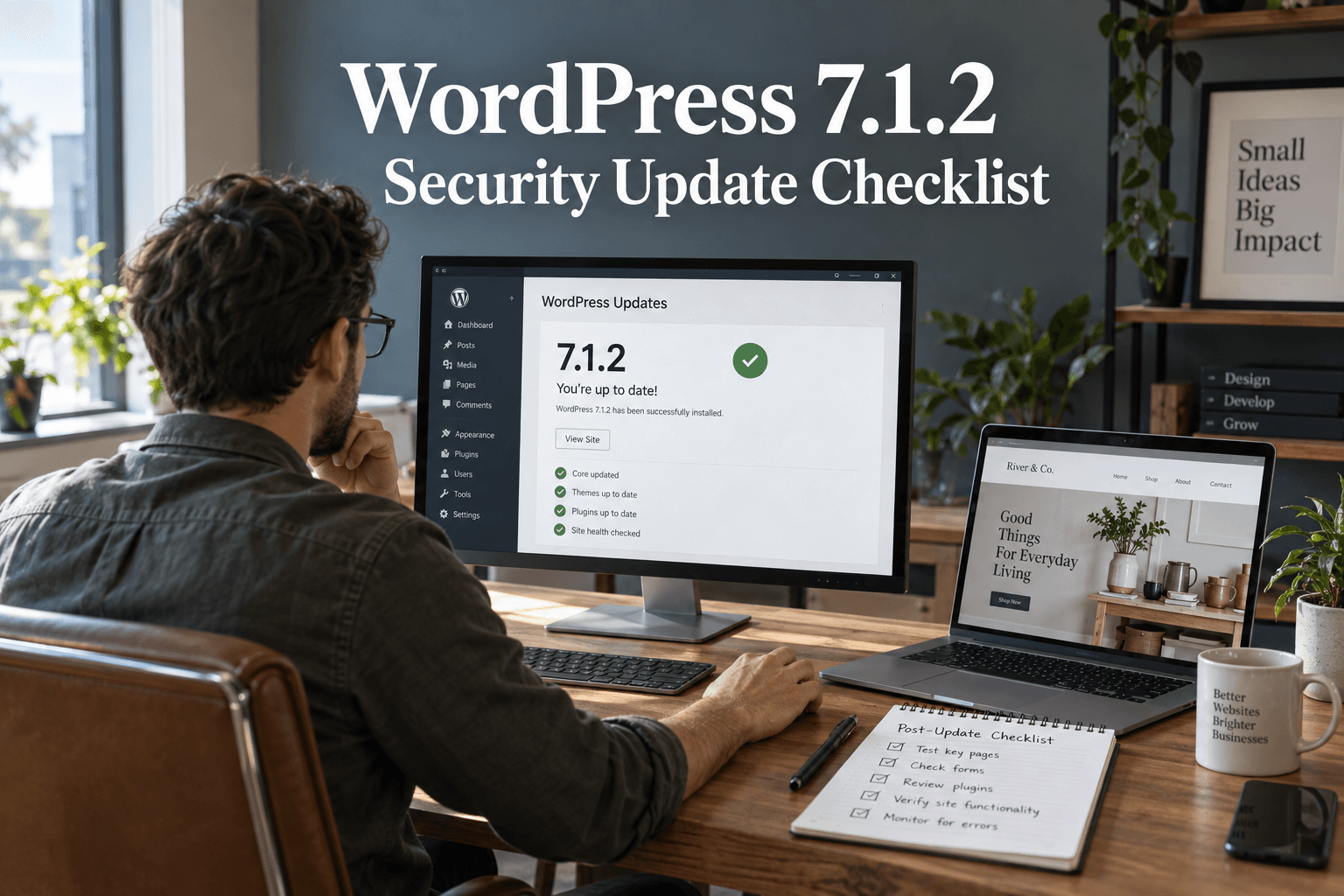
Log into the correct production site and open Dashboard → Updates. Record the version you see. Check each installation separately if you manage several sites.
An agency can easily update a staging copy while the live store remains unchanged. A hosting account can also contain a forgotten test installation. Give each site an owner and record its result.
For a small portfolio of sites, use one row per installation with these fields:
- Site address and hosting account.
- Installed version before the change.
- Backup location and recovery owner.
- Installed version after the change.
- Time checked, tester and any unresolved problem.
Our WordPress security updates tracker provides wider release context. Use this article for the specific 7.1.2 response, not as a substitute for checking the live dashboard.
Take a usable backup, then apply the update promptly
Before changing the site, confirm you have a recent copy of both its files and database. Know who can restore it. A backup notification is less useful if nobody can access the copy when the store stops working.
For an active shop, also note the time of the backup. Restoring an older database can lose orders, form entries and other changes made afterward. The explains how to plan that recovery.
Use a short staging check if you already have a working test process. Do not let a long redesign review hold up a critical patch. Keep unrelated theme, layout and plugin changes out of this update window so any new problem is easier to trace.
The WordPress update instructions describe the dashboard update route. For a managed site, ask your host to apply or confirm the appropriate security update. Afterward, reopen the Updates screen and record the installed version.
Run a short business-function check
A homepage that loads is a useful first check. It is not enough to show that customers can still contact you, sign in or complete a purchase.
Start with the paths that matter most to your business:
- Open the homepage, a service page and a blog post on a phone.
- Submit a clearly labeled test enquiry and confirm it reaches the right inbox.
- Check sign-in and sign-out with a low-privilege test account.
- For a store, check product options, cart totals and the checkout flow.
- Review a page that uses a custom template or custom fields.
- Check the error log for new failures during those tests.
Use a test payment method or the store's approved test procedure. Do not create an accidental charge just to check checkout.
Choose a small, repeatable set of checks. An owner should be able to see what passed without opening a long chat history. Our covers a broader test routine.
What if the update fails or the site breaks?
Write down the error and when it happened. Avoid repeatedly changing several settings at once. Contact the host or maintainer with the installed version, the failed step and the affected page.
If a temporary rollback becomes necessary, remember that restoring an older vulnerable copy can reopen the original risk. Agree on a protected recovery plan and a prompt path back to a patched version. For a live store, reconcile orders and customer changes before restoring its database.
Do not remove random files or disable every security control to make the warning go away. Fix the cause of the failure with someone who understands the hosting setup.
Patching and investigating are different jobs
Installing a security update addresses the patched flaw. It does not prove that the site was clean beforehand, or remove every possible trace of an earlier compromise.
If you find unfamiliar administrator accounts, unexplained redirects or unexpected file changes, preserve the evidence and investigate. These signs can have several causes, so avoid declaring a breach from one symptom alone.
Our explains how to handle a suspected incident. Keep that process separate from the routine update checklist.
Finish with a clear record
Close the task only after recording the patched version, backup details and test results. Assign any remaining issue to a named person. For the next day, pay attention to failed enquiries, checkout errors and new log entries. Our explains how to turn those observations into a repeatable routine.