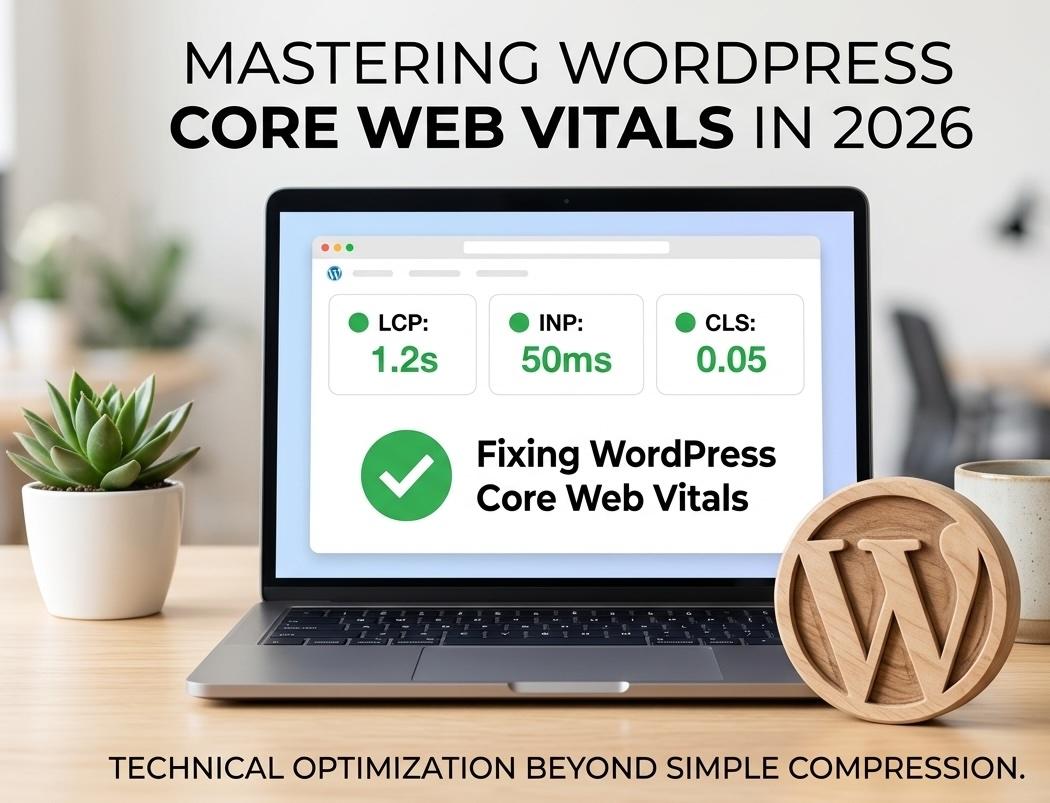
Most Core Web Vitals guides tell you the same thing: compress your images, enable caching, use a lightweight theme. Good advice — but if you've already done all that and your WordPress site is still failing Interaction to Next Paint (INP) or bouncing between "Needs Improvement" and "Poor" in Google Search Console, you need something more specific than surface-level tips.
This guide skips the basics and goes straight into the technical layer: which plugins actually move the needle for WordPress Core Web Vitals in 2026, what settings inside them matter, and the exact code-level fixes developers use to push LCP, INP, and CLS into the green when the standard advice isn't enough.
A Fast Refresher on the 2026 Thresholds
Before diving into fixes, here's the baseline every WordPress site needs to hit:
Google measures these at the 75th percentile of real user sessions, meaning at least 75% of your visits need to pass each metric before Google marks a URL "Good." If you're only checking Lighthouse scores in DevTools, you're looking at lab data — the Core Web Vitals report inside Google Search Console reflects real, field-collected user experience, and it's the one that actually affects rankings.
Why WordPress Sites Struggle With Core Web Vitals Specifically
WordPress's flexibility is also its biggest performance liability. Unlike fully hosted platforms where infrastructure and rendering are locked down, WordPress lets every plugin and theme inject its own CSS, JavaScript, and database queries — and most of them do it without any regard for what else is running on the page.
The three most common root causes, in order of impact:
- Page builders. Elementor, Divi, and WPBakery can add tens of megabytes of unzipped code to a WordPress installation, with each widget contributing extra wrapper
<div>elements, dedicated CSS files, and render-blocking scripts — even on pages that don't use them. - Plugin sprawl. Every plugin that registers a script via
wp_enqueue_scriptsloads it sitewide by default unless it's explicitly scoped. A site running 30–40 plugins can end up loading 20+ scripts and stylesheets on a single page, most of which aren't even needed there. - Slow TTFB (Time to First Byte). A large share of WordPress sites struggle with LCP not because of poor image optimization, but because of slow server response time. If your host takes over 600ms to respond, no amount of front-end tuning will fully fix your LCP score.
The Plugin Stack That Actually Fixes Core Web Vitals
Not all "performance plugins" solve the same problem. Here's how the major categories break down and what each one is actually responsible for fixing:
1. Caching Plugins (Fix: LCP, partially INP)
Page caching stores a fully rendered HTML version of your page so WordPress doesn't have to re-run PHP and hit the database on every single visit. This is the single biggest lever for reducing TTFB, which directly improves LCP.
- WP Rocket — Widely used for its combination of page caching, a "Delay JavaScript Execution" feature, and built-in critical CSS generation. Delaying JS until the user's first interaction is one of the fastest ways to bring INP down without touching a single line of code.
- LiteSpeed Cache — A strong free option if your host runs LiteSpeed server infrastructure, offering server-level caching alongside image optimization and CSS/JS optimization tools.
- FlyingPress / Perfmatters — Lighter-weight alternatives that focus specifically on script management, font optimization, and removing unused CSS.
Developer tip: Whichever caching plugin you use, always test your "Delay JS" or "Defer JS" exclusion list carefully. Deferring a script your page actually needs on load (like a slider initializer) can break functionality even while it improves your score.
2. Image Optimization Plugins (Fix: LCP, CLS)
- ShortPixel and Imagify both handle automatic compression and WebP/AVIF conversion on upload, which keeps your hero images small without manual work.
- Make sure your plugin also sets explicit
widthandheightattributes on every image tag — this is what prevents CLS from images "popping in" and shifting the layout as they load.
3. Dedicated Core Web Vitals Plugins (Fix: LCP, INP)
A newer category of plugins focuses specifically on identifying and preloading the actual LCP element on each page (rather than guessing), and fine-tuning image load timing based on real Core Web Vitals data instead of generic lazy-loading rules. These tools are worth testing if your generic caching setup has plateaued and you're still failing LCP or INP on specific templates.
Code-Level Fixes for When Plugins Aren't Enough
Plugins solve the majority of Core Web Vitals problems, but some fixes require going into your theme's functions.php file or a site-specific plugin. Here are the fixes developers reach for most often:
Preload Your LCP Image
If your hero image is the LCP element (which it usually is), preloading it tells the browser to fetch it before anything else on the page:<link rel="preload" as="image" href="/wp-content/uploads/hero-image.webp" fetchpriority="high">Add this directly inside your theme's <head> section, either through a child theme template or a header-injection plugin.
Defer Non-Critical JavaScript
To manually defer scripts that don't need to run immediately, you can hook into wp_enqueue_scripts:function my_theme_defer_scripts($tag, $handle) {This adds the
$exclude_list = ['jquery'];
if (in_array($handle, $exclude_list)) {
return $tag;
}
return str_replace(' src', ' defer src', $tag);
}
add_filter('script_loader_tag', 'my_theme_defer_scripts', 10, 2);defer attribute to non-essential scripts so they don't block rendering, which directly improves both LCP and INP.
Inline Critical CSS
Instead of loading your full stylesheet before the browser can render anything, inline the CSS needed for above-the-fold content directly in the <head>, and load the rest of your stylesheet asynchronously:<style>/* critical above-the-fold CSS here */</style>Most caching plugins with a "critical CSS" feature automate this, but manually generating and inlining it yourself gives you tighter control if you're chasing the last few tenths of a second on LCP.
<link rel="stylesheet" href="style.css" media="print" onload="this.media='all'">
Reserve Space for Dynamic Content
For any element that loads after the initial page render — ads, embeds, dynamically injected banners — set an explicit min-height in your CSS equal to the expected size of that content. This single fix eliminates a large share of CLS issues caused by content "jumping" into place.
Put these ideas to work.
From a specific fix to a complete website, we can help you define the scope and get it done.
Discuss my websiteProfessional WordPress Speed OptimizationShare your goals. We typically reply within 4 hours with questions and practical next steps.
A Practical Fix Order for Developers
When a WordPress site fails all three Core Web Vitals at once, don't try to fix everything simultaneously. Work through this order:
- Fix TTFB first. Check your hosting response time. If it's consistently above 600ms, no other fix will meaningfully improve LCP until this is addressed — consider upgrading to managed WordPress hosting or a better-configured VPS.
- Tackle LCP next. Preload your hero image, compress it to WebP/AVIF, and eliminate render-blocking CSS in the
<head>. - Move to INP. Audit third-party scripts, defer everything non-essential, and reduce main-thread JavaScript execution.
- Finish with CLS. Add explicit image/video dimensions, reserve space for dynamic content, and apply
font-display: swapto prevent font-loading layout shifts.
Fixing metrics in this order matters because each layer builds on the one before it — there's little point fine-tuning JavaScript execution if your server response time is still adding two seconds before the page even starts rendering.
Testing and Monitoring Your Fixes
- Google Search Console → Core Web Vitals report — Your primary source of truth, since it reflects real user (field) data rather than a single lab test.
- PageSpeed Insights — Useful for quick, page-specific diagnostics and to confirm which element is triggering your LCP or CLS score.
- WebPageTest — Gives a full waterfall view of resource loading, which helps pinpoint exactly which script or stylesheet is delaying render.
- Chrome DevTools Performance panel — Best for catching long JavaScript tasks that are hurting your INP score directly.
Core Web Vitals aren't a one-time fix. New plugins, content, and theme updates can quietly reintroduce regressions, so build a habit of checking Search Console monthly and re-testing after any significant site change.
Frequently Asked Questions (FAQs)
1. Which Core Web Vitals metric do WordPress sites fail most often?
It varies by site, but slow Time to First Byte (TTFB) driving poor LCP scores is one of the most common issues, since a large share of WordPress installations run on shared hosting that struggles to respond quickly under load.
2. Can a caching plugin alone fix all three Core Web Vitals?
No. Caching plugins are excellent for improving LCP by reducing server response time, but they typically can't fully resolve CLS issues (which require layout adjustments) or deep INP problems caused by heavy third-party JavaScript.
3. Do page builders like Elementor always hurt Core Web Vitals?
Not necessarily, but they require careful optimization. Enabling a builder's built-in performance features and pairing it with proper caching and script deferral can bring even builder-based sites into passing territory.
4. How often should I re-test my WordPress site's Core Web Vitals?
At minimum, monthly — and always after installing new plugins, changing your theme, or making significant content or design updates, since any of these can silently reintroduce performance regressions.
5. Is it safe to defer all JavaScript on my WordPress site?
No. Some scripts (like those controlling navigation menus or critical UI elements) need to run immediately. Always test your exclusion list carefully after enabling any "Delay JS" or "Defer JS" feature to avoid breaking site functionality.
Summary
Fixing WordPress Core Web Vitals in 2026 goes beyond generic advice like "compress your images" — it requires understanding which plugins solve which problems, applying targeted code-level fixes like preloading your LCP image and deferring non-critical JavaScript, and working through LCP, INP, and CLS in the right order. Start with server response time, layer in the right caching and image plugins, apply code-level fixes where plugins fall short, and monitor your results in Google Search Console rather than relying on a single lab test. Done properly, this technical layer of optimization is what separates a site that occasionally passes Core Web Vitals from one that consistently does.
Related Reading
For a broader overview of Core Web Vitals thresholds and WordPress-specific causes, see our guide on Core Web Vitals for WordPress: How to Fix Speed Metrics. If you're also tightening up your site's security posture, check out our guide on WordPress security best practices.
Need Hands-On Help Fixing Your Core Web Vitals?
Diagnosing and fixing deep-rooted LCP, INP, and CLS issues often requires more than swapping plugins — it takes server-level tuning, custom code, and ongoing monitoring. At Premier Solutions, our team handles the technical, code-level side of WordPress performance optimization so your site passes Core Web Vitals consistently, not just on a good day. Talk to our team about a full Core Web Vitals audit for your WordPress site.