A WordPress security audit is a structured review of the accounts, software, files, hosting controls, backups, and monitoring that protect a site. The goal is not to make an impossible promise that a website can never be attacked. It is to identify preventable exposure, confirm that recovery is possible, and reduce the time between a security problem appearing and someone responding to it.
If you already see redirects, unknown administrators, spam pages, or browser warnings, stop auditing and follow the emergency hacked-site recovery steps. An audit is preventive work; an active compromise needs containment and forensic cleanup.
How to Use This WordPress Security Audit Checklist
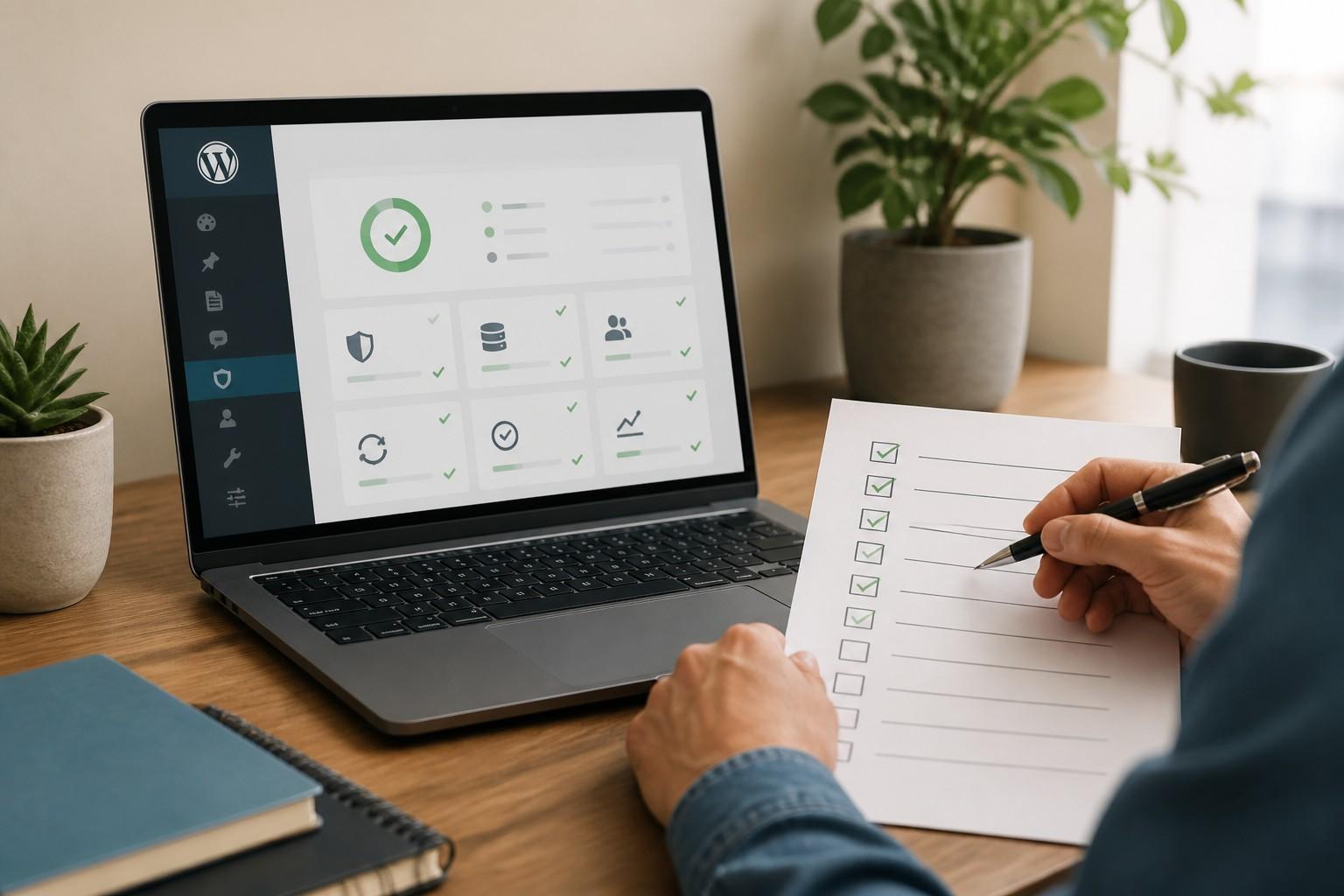
Record each check as Pass, Needs Work, or Not Applicable. Save evidence such as screenshots, version numbers, backup logs, and test results. Assign every failed check to an owner and a deadline. A checklist only improves security when findings become tracked actions.
For a business-critical website, run a complete audit at least quarterly and after a major migration, redesign, hosting change, or security incident. Lightweight checks for updates, backups, uptime, and suspicious activity should happen continuously or on a scheduled maintenance cycle.
1. WordPress Core, Theme and Plugin Exposure
- 1. Confirm WordPress core is supported and current. Record the installed version, compare it with the current supported release, and review the security notes before updating. Test major releases on staging instead of applying them blindly to production.
- 2. Inventory every plugin and theme. Include inactive extensions because inactive code can still remain on the server. Record the owner, business purpose, installed version, update status, and whether the product is still maintained.
- 3. Remove abandoned and unnecessary components. Delete unused plugins and themes rather than merely deactivating them. Replace software that has stopped receiving updates or relies on unsupported PHP or WordPress versions.
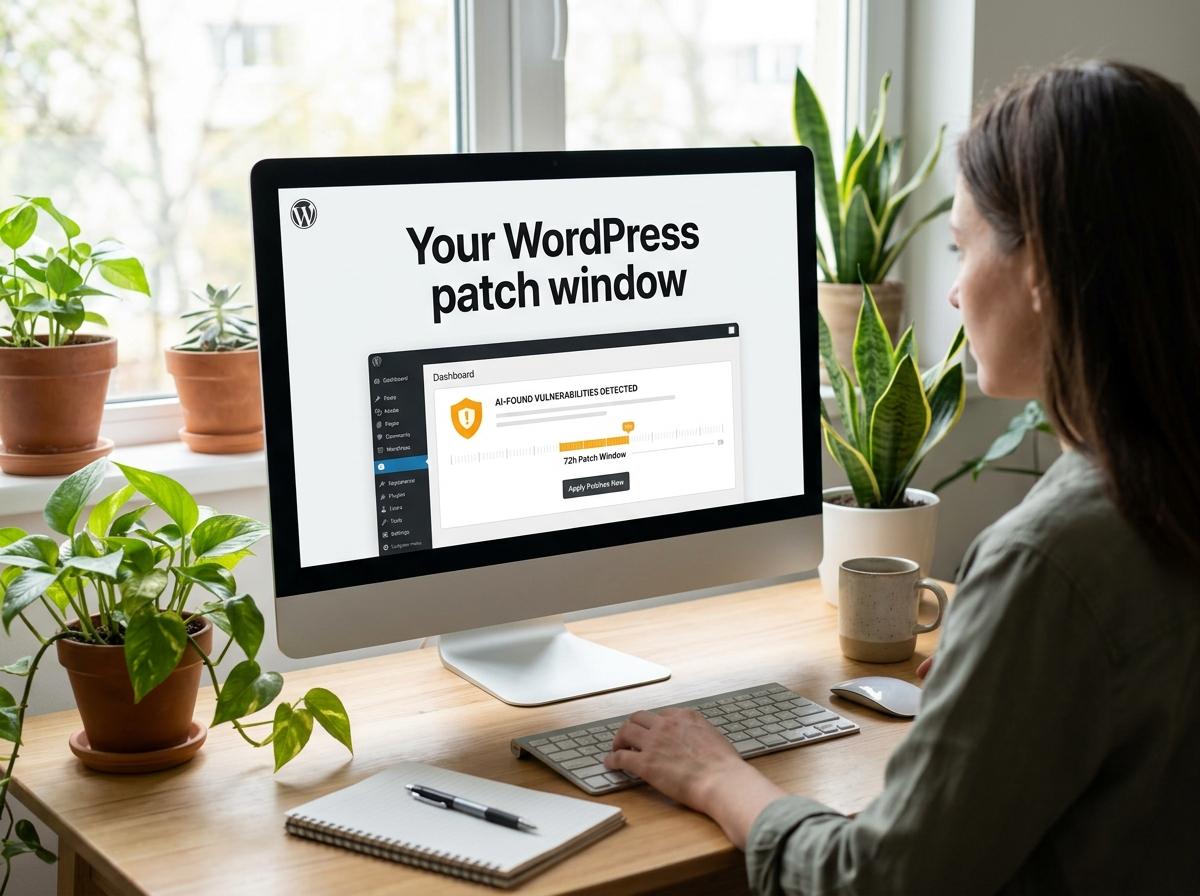
- 4. Check public vulnerability sources for installed components. A version being fully updated does not guarantee that it is safe; a newly disclosed issue may not yet have a vendor patch. Document any temporary mitigation or virtual-patching rule.
- 5. Review the update process. Business sites should use a staging-first workflow, a verified backup, and a rollback plan. If updates are fully automatic, confirm that someone receives failure alerts and checks the site after deployment.
Many preventable compromises begin with the same patterns described in our guide to WordPress security mistakes that get sites hacked.
2. Users, Authentication and Permissions
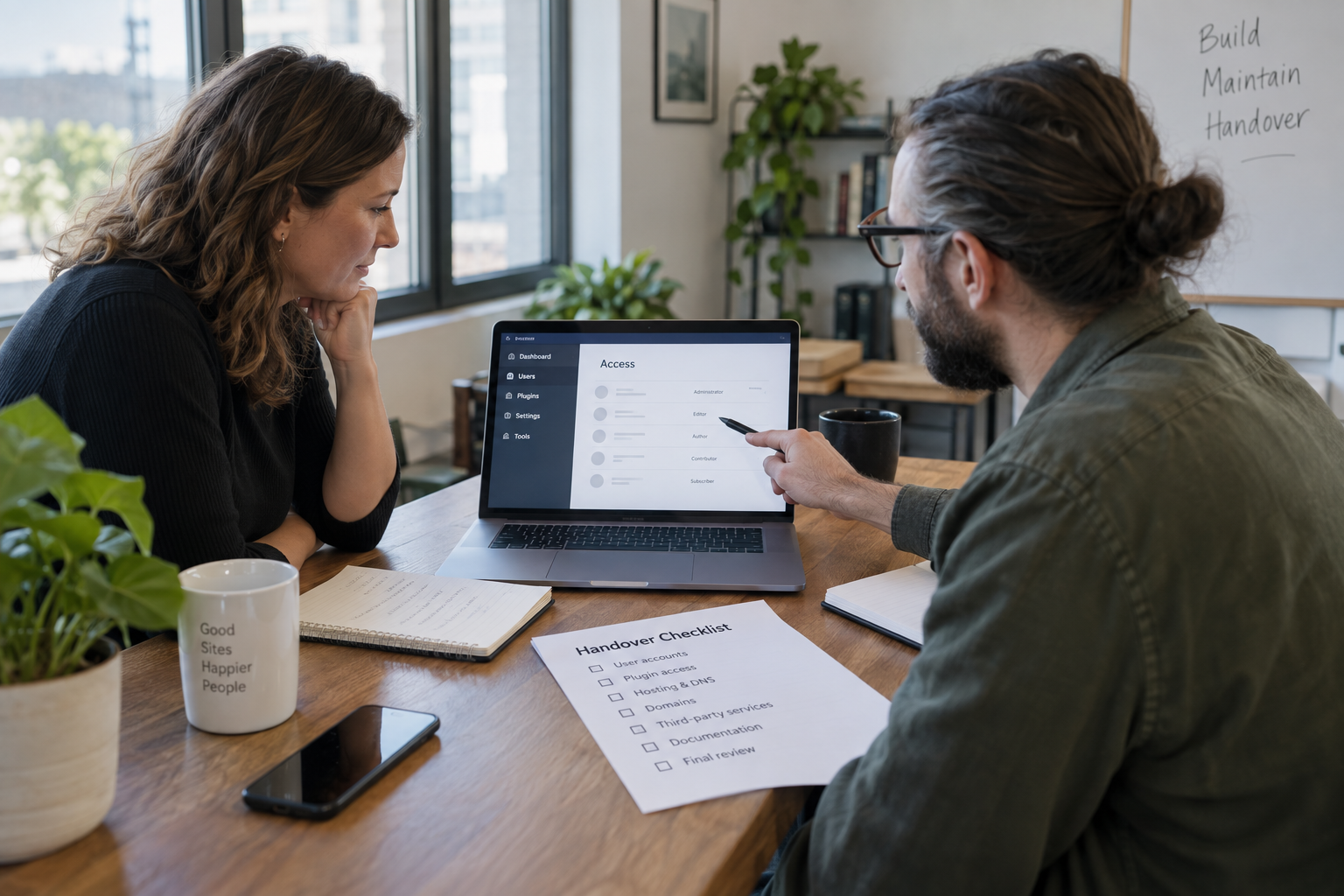
- 6. Audit administrator accounts. Every administrator should belong to a real person or documented integration. Remove former staff, agency users, test accounts, duplicate administrators, and accounts with suspicious creation dates.
- 7. Apply least privilege. Editors, authors, shop managers, support staff, and developers should receive only the permissions needed for their role. Avoid sharing a single administrator login across a team.
- 8. Enforce strong, unique passwords. Check that credentials are not reused across hosting, WordPress, email, DNS, Cloudflare, and database accounts. A password manager is safer than circulating credentials in chat or email.
- 9. Enable multi-factor authentication for privileged users. Prioritize WordPress administrators, hosting, domain registration, DNS, email, source control, and any account able to reset another credential.
- 10. Review login and password-reset controls. Confirm rate limiting, bot protection, secure reset emails, session expiry, and alerts for unusual login activity. Test the process from a private browser window instead of assuming it works.
3. Hosting, Files and Database Controls
- 11. Confirm the supported PHP and database versions. Unsupported runtimes accumulate known security issues and prevent plugins from receiving compatible updates. Test runtime upgrades on staging before changing production.
- 12. Inspect file and directory permissions. Configuration files should not be writable by the public web process unless required. Look for world-writable directories, unexpected executable files in uploads, and ownership that differs from the rest of the installation.
- 13. Protect wp-config.php and secrets. Database credentials, salts, API keys, and environment values should not be exposed in public repositories, backups, error messages, or downloadable files. Rotate secrets after staff or vendor changes.
- 14. Review database users and privileges. The WordPress database account should be limited to the intended database and necessary operations. Remove old remote-access users and verify that database administration tools are not publicly exposed.
- 15. Establish a clean-file baseline. File-integrity monitoring is useful only when it can distinguish approved deployments from unexplained changes. Confirm who receives alerts and how a changed file is investigated.
Put these ideas to work.
From a specific fix to a complete website, we can help you define the scope and get it done.
Discuss my websiteAdvanced WordPress Security SolutionsShare your goals. We typically reply within 4 hours with questions and practical next steps.
4. Application, API and Traffic Protection
- 16. Check HTTPS and security headers. Redirect all HTTP traffic to HTTPS, review certificate renewal, and assess HSTS, content security policy, clickjacking protection, referrer policy, and MIME-sniffing protection according to the site’s functionality.
- 17. Review XML-RPC and REST API exposure. Do not disable interfaces indiscriminately; determine which features depend on them. Restrict unnecessary methods, require authentication where appropriate, and test integrations after changes.
- 18. Validate forms, uploads and custom code. Forms should use capability checks, nonces, server-side validation, and safe output escaping. File uploads need type, size, access, and storage controls rather than relying only on a filename extension.
- 19. Audit the firewall configuration. Check whether protection exists at the CDN, hosting, server, or WordPress layer; confirm logging and rule ownership; and remove conflicting or duplicated controls that provide noise rather than coverage.
If you are deciding between endpoint and edge protection, use our practical comparison of Wordfence and Cloudflare for WordPress to understand where each control operates.
- 20. Review spam and bot controls. Registration, login, checkout, search, comments, and contact forms can all be abused. Measure false positives as well as blocked traffic so security controls do not prevent legitimate customers from using the site.
5. Backups, Monitoring and Incident Readiness
- 21. Verify backup frequency against business risk. A brochure site may tolerate a longer recovery point than a busy store. Define how much data the business can afford to lose, then make the backup schedule match that requirement.
- 22. Confirm backups are offsite and protected. A backup stored only on the same hosting account can disappear with the site. Restrict access, retain multiple recovery points, and prevent public download URLs.
- 23. Test a full restore. A successful backup notification is not proof that the archive can be restored. Periodically restore to an isolated environment and confirm files, database, media, users, orders, and integrations behave correctly.
- 24. Check security, uptime and change alerts. Alerts should reach a monitored channel and include enough context to act. Test who responds outside business hours and what happens if the primary contact is unavailable.
- 25. Maintain an incident-response record. Document hosting contacts, domain and DNS access, backup locations, responsible staff, escalation rules, customer-notification decisions, and the steps for preserving an infected copy for investigation.
How to Prioritize the Findings
Fix issues that provide direct access or prevent recovery first: unknown administrators, exposed credentials, actively exploited plugins, public backups, unsupported runtimes, missing offsite backups, and failed restore tests. Next address broad attack-surface problems such as unnecessary plugins, excessive permissions, weak login protection, and unmonitored file changes.
Lower-severity improvements should still be scheduled, but do not let cosmetic hardening distract from the controls that determine whether an attacker can enter, persist, or destroy the recovery path.
For a deeper implementation guide, read how to secure a WordPress website. If you need an independent review, our WordPress security service covers vulnerability assessment, hardening, monitoring, and a prioritized remediation plan.
What a Professional WordPress Security Audit Should Deliver
- A complete inventory of core, themes, plugins, users, integrations, hosting, DNS, and security controls.
- Evidence-backed findings ranked by likelihood, impact, and remediation effort.
- A clear distinction between confirmed vulnerabilities, configuration weaknesses, and optional improvements.
- Specific remediation steps, owners, and target dates rather than a generic scanner report.
- A recovery-readiness assessment covering backup integrity, restore testing, and incident contacts.
- A retest after critical changes are completed.
Security is not a one-time installation. Our WordPress maintenance and care plans combine tested updates, backups, monitoring, and ongoing review so the audit findings remain addressed after the initial project.
Frequently Asked Questions
How often should a WordPress security audit be performed?
Run a full audit at least quarterly for a business website and after major changes such as a redesign, migration, hosting move, or security incident. Updates, backups, uptime, and suspicious activity should be monitored more frequently.
Can a security plugin replace a WordPress security audit?
No. A plugin can scan files, block traffic, or enforce selected controls, but it cannot evaluate hosting access, staff accounts, DNS, backup recovery, business risk, custom code, and incident ownership as a complete system.
Does passing every check mean a WordPress site cannot be hacked?
No audit can guarantee that a website will never be compromised. Passing the checks reduces known exposure and improves detection and recovery, but new vulnerabilities, credential theft, hosting failures, and human error remain possible.
Should inactive WordPress plugins be included in the audit?
Yes. Inactive plugins and themes can still leave vulnerable files on the server. If an extension is not needed, delete it and retain a documented copy only where your recovery process requires one.
What should I fix first after a failed audit?
Prioritize active exploitation, unknown administrators, exposed credentials, unsupported software, vulnerable plugins, public backups, and failed restore tests. These issues can provide direct access or prevent reliable recovery.
Turn the Checklist into a Remediation Plan
A useful audit ends with verified changes, not a PDF that sits unread. If your review uncovers unknown accounts, malicious files, or spam pages, inspect the warning signs of a hacked WordPress site and move to containment. For preventive hardening and monitoring, request a scoped review through our advanced WordPress security service.