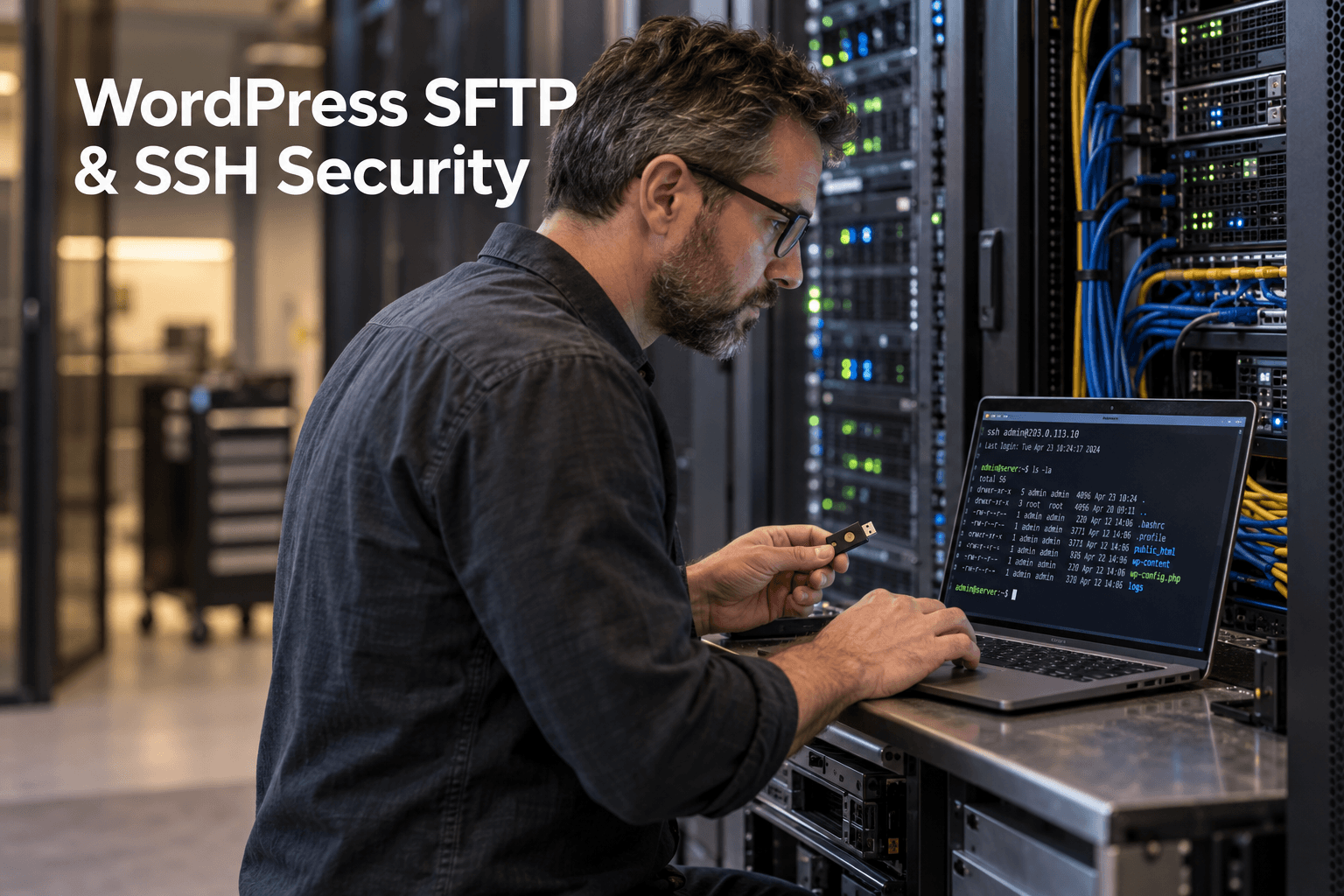
SFTP and SSH provide powerful access to the server beneath a WordPress site. That access is invaluable for deployments, WP-CLI, troubleshooting and recovery, but it can also bypass dashboard protections and change every file the web server can reach. Treat it as privileged infrastructure access, not a convenient shared login.
A secure setup has four qualities: encrypted transport, individual identities, least privilege and reliable evidence. It should be easy to answer who connected, from which approved device, what they could change and how their access will be removed.
Know the protocols you are allowing
SFTP is the SSH File Transfer Protocol. It operates through SSH and encrypts the session. It is not the same as traditional FTP, and it is not the same protocol as FTPS, which adds TLS to FTP. Confirm what your host actually provides instead of assuming that an application labeled “FTP client” is using a secure mode.
SSH provides an interactive shell or command channel. SFTP may be restricted to file operations, while SSH can run WP-CLI, inspect logs, change services and execute scripts. Give users only the capability their work requires; a designer who uploads assets rarely needs an unrestricted shell.
When server access is used to troubleshoot plugins or manage WordPress from the command line, follow the least-privilege practices in our WordPress security audit service rather than giving every collaborator full administrative access.
Create individual accounts and remove shared credentials
Every employee, contractor and automation should have its own identity. Individual accounts make logs useful, allow narrow permissions and let you revoke one person's access without interrupting the whole team. Avoid naming accounts after a generic role if it obscures who controls them.
Keep an access register with the account owner, business purpose, approved directories or commands, authentication method, creation date and review date. During offboarding, remove the account or key, terminate active sessions where possible, rotate any shared secrets the person could access and review recent activity.
Server accounts are only one privilege layer. Use the same inventory mindset for WordPress users with our guide to detecting rogue WordPress administrators and unexplained privilege changes.
Prefer well-managed SSH keys
Public-key authentication avoids sending a reusable password to the server. Generate a separate key for each person or automated system, protect private keys with a strong passphrase where operationally possible and store them in an approved password manager, secure keychain or hardware-backed device.
Never email private keys, paste them into tickets or copy one key across the team. Do not store deployment keys in a public repository or inside the WordPress document root. For automation, use a dedicated secret store and expose the key only to the job that needs it.
The storage, rotation and revocation process should align with the controls in our . A secret is not safe merely because it is outside wp-admin.
Harden SSH without locking out the recovery team
Validate key-based access in a second session before disabling password authentication. Keep the current session open, test the configuration, confirm the hosting provider's emergency console or recovery procedure, and only then make stricter authentication changes. A secure configuration that strands the team during an outage creates a different risk.
Where you manage the SSH daemon, consider denying direct root login, limiting permitted users or groups, disabling empty passwords, reducing unused authentication methods and restricting forwarding features that are not required. The correct settings depend on the operating system, hosting model and recovery process, so change them through a documented, reversible procedure.
Network controls can reduce exposure further. Managed hosting firewalls, a VPN, a bastion host or carefully maintained allowlists may restrict where administrative connections originate. Do not rely on an IP allowlist alone: addresses change, credentials can still be stolen and misconfigured rules can block legitimate emergency access.
Limit what each account can reach
Scope SFTP users to the directories they actually maintain. Separate production, staging and backup destinations. For automated deployments, restrict the account to the necessary path and commands instead of granting a full interactive shell. Avoid giving a website process permission to modify more of the server than its function requires.
Ownership and mode settings matter after every upload. Follow our and avoid world-writable permissions such as 777, which can expose files to other processes or users on the server.
A secure transfer can still deliver malicious or unreviewed code. Use version control and a deployment process where possible, scan uploaded files, and compare production changes with an approved release. Restrict direct edits to emergencies and record what changed.
Protect workstations and verify server identity
The server is only one side of the trust relationship. Keep administrator devices patched, encrypted and protected by endpoint security. Lock the screen, separate personal and work profiles where practical, and remove keys from lost or replaced devices.
Verify host keys when connecting to a server for the first time and investigate unexpected host-key changes. Blindly accepting a new fingerprint can hide a connection to the wrong system or a man-in-the-middle event. Publish trusted fingerprints through a separate, authenticated channel for the team.
Log, alert and review
Collect successful and failed SSH authentication events, source addresses, account names and session times. Alert on repeated failures, access from unexpected locations, dormant accounts becoming active, new authorized keys and connections outside normal maintenance windows.
Connect infrastructure logs with the website events covered in our so a new server login, file change and administrator creation can be investigated as one timeline.
Review access on a schedule and after every staffing, vendor or hosting change. Check authorized-keys files and provider dashboards, not just a spreadsheet. The source of truth is the access that still works.
Plan for mistakes and emergencies
Before modifying permissions, authentication or server configuration, take a verified backup and know how to restore it without relying on the access path you are changing. Keep recovery codes, console access and escalation contacts protected but available to authorized responders.
Use the recovery drills in our to confirm that files, the database and configuration can be restored after an accidental command or compromised account.
If suspicious access occurs, disable the affected identity, preserve logs, rotate exposed credentials, compare files with known-good versions and assess whether database or application secrets were accessible. Do not erase evidence before you understand the scope.
A practical SFTP and SSH checklist
Use SFTP instead of unencrypted FTP; create individual accounts; prefer unique protected keys; restrict directories and commands; verify host fingerprints; harden SSH through tested changes; protect administrator devices; monitor access and key changes; review accounts regularly; and keep an independent recovery path.
For ongoing ownership, access reviews, safe updates and incident readiness, our can manage the operational controls that are easy to overlook after the initial setup.
Frequently asked questions
What is the difference between SFTP and FTP?
SFTP transfers files through the SSH protocol and encrypts the connection. Traditional FTP sends data and credentials without equivalent transport protection unless a separate TLS mode is configured. SFTP and FTPS are different protocols.
Should WordPress administrators use SSH keys instead of passwords?
SSH keys are generally preferable for administrative server access when they are generated, stored and revoked correctly. Validate key access first, protect private keys with passphrases or hardware-backed storage, and keep a tested recovery path before disabling password authentication.
Can I give one SFTP account to the whole team?
A shared account weakens accountability and makes offboarding difficult. Give each person or automation an individual identity with only the directories and commands it needs, then remove that access when the work ends.
How often should SSH keys be rotated?
Rotate keys immediately when a device, contractor or private key may be compromised, and when a person leaves or changes role. For routine rotation, follow a documented schedule based on risk and verify that old keys are actually removed from every authorized-keys location.