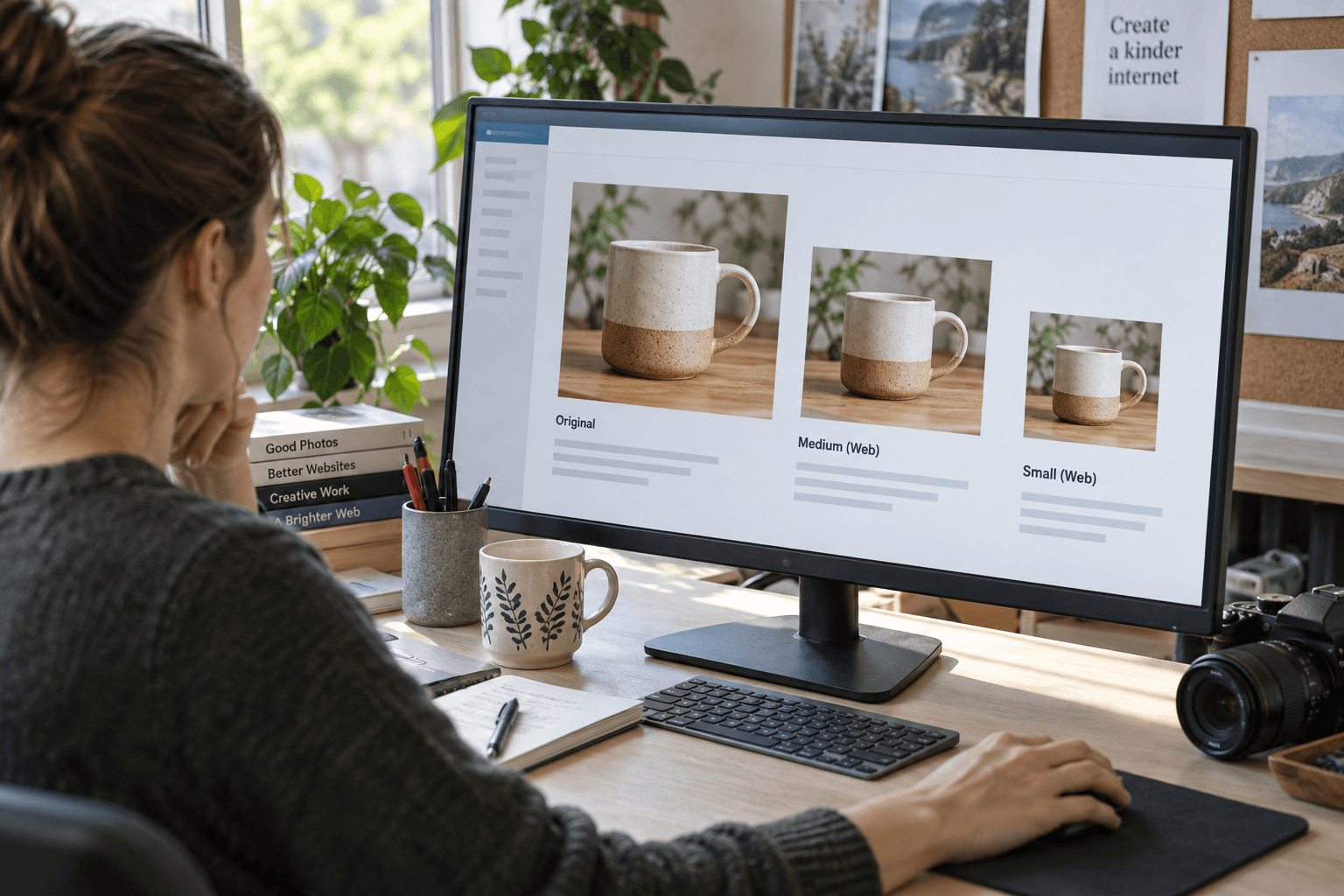
An image that looks good on your computer can look different after upload. Processing, theme sizes, and the final crop all affect what a visitor sees.
WordPress 7.1 includes browser-side media processing improvements, described in the release announcement. Treat an upload as the start of quality checking, not the end.
Keep the original asset
Store a clear original with a descriptive filename. Avoid repeatedly editing a compressed copy when the source is available.
Record the intended use: hero, article cover, thumbnail, or product detail. Each placement has a different need for sharpness and crop.
Inspect the processed image
Check orientation, color, transparency, and fine detail. Look closely at small text, edges, and faces if they matter to the image.
Use a realistic viewing size. Magnifying every image far beyond its display size can lead to unnecessarily large files without improving the actual page.
Review the final crop
Open the public preview on desktop and mobile. Confirm that the subject remains visible and that any embedded information is not cut off.
If the same asset is used for the featured image and social preview, inspect both placements. A suitable article crop may not survive a different card shape.
Put these ideas to work.
From a specific fix to a complete website, we can help you define the scope and get it done.
Share your goals. We usually reply within one business day with questions and practical next steps.
Check delivery on the page
Confirm which image size the page serves rather than judging only the uploaded file. A small thumbnail enlarged into a hero can look soft even when the original is excellent.
Our WordPress speed optimization guide explains the broader review. Involve WordPress development if the template requests the wrong size.
Add a useful description
Write alt text for the image's role in context. Describe meaningful visual information without turning the field into a keyword list.
For recurring upload problems, Premier Sol's website speed optimization service can review quality and delivery together.
A good image workflow preserves the intended story while avoiding unnecessary weight. The right result is a clear image in its actual placement, not simply the largest file the site will accept.
Frequently asked questions
Should I keep the original image after upload?
Yes. A preserved original makes later crops and format changes easier without repeatedly degrading an edited copy.
Why is a high-resolution upload blurry on the page?
The template may be serving a smaller version or enlarging it beyond its intended display size. Check the delivered asset.
Can one image serve as both featured and social image?
Yes, if both crops work. Preview each placement and provide the appropriate alt text fields.